Vodafone Web 2 SMS service connection
Ozeki SMS Gateway supports direct integration with Vodafone's Web 2 SMS service, enabling businesses to send SMS messages programmatically through Vodafone's Web2SMS API. Setting up the connection is straightforward: you install the dedicated Vodafone Web2SMS client from within the gateway, then enter your Vodafone-provided credentials — including Account ID, Password, Sender Name, Secret Key, and API URL. Once configured, the gateway provides a built-in test tool that lets you immediately verify the connection by sending a live SMS and confirming delivery with a success notification. This guide walks you through each step of the process, from adding the connection to sending your first test message.
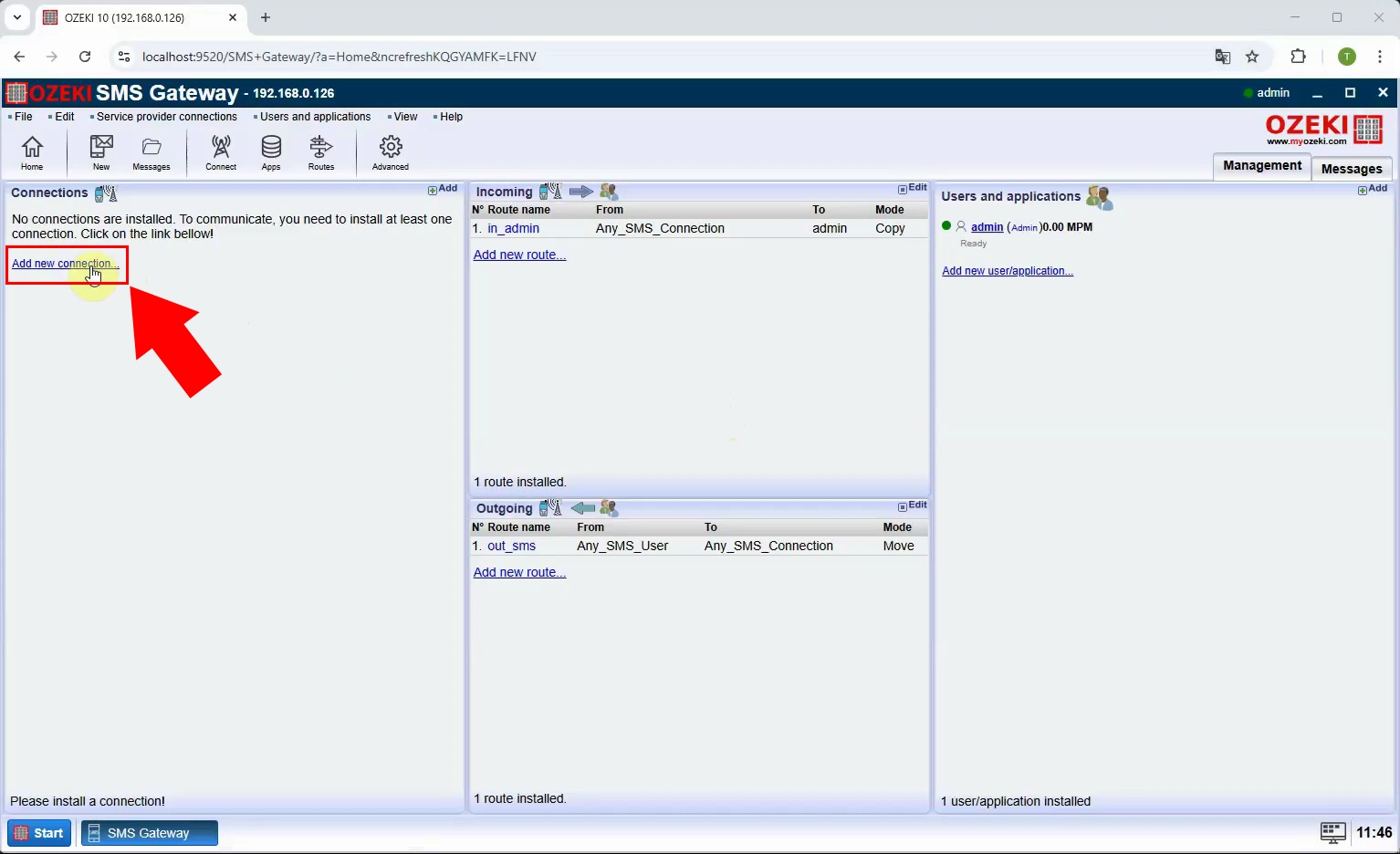
To begin setting up the Vodafone Web 2 SMS service, open the Ozeki SMS Gateway management interface in your browser. On the main dashboard you will see the Connections panel on the left, which shows that no connections are installed yet. Click the "Add new connection..." link in the Connections panel to proceed to the list of available service provider clients.
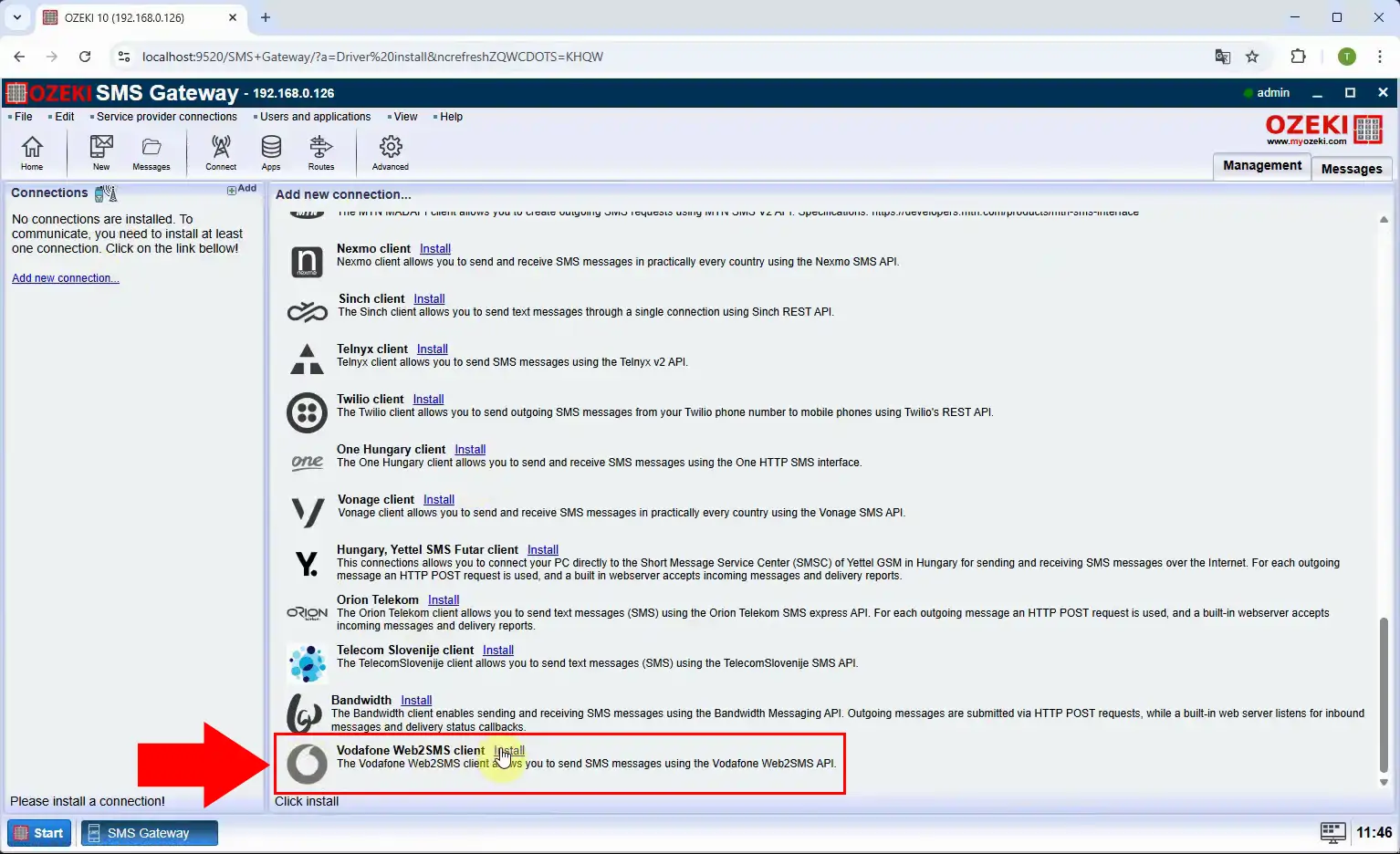
After clicking "Add new connection...", the gateway displays a list of all supported service provider clients. Scroll down through the list until you locate the "Vodafone Web2SMS client" entry, which is highlighted with a red arrow in the figure. Click the "Install" link next to it to begin the installation of the Vodafone Web 2 SMS connection driver.
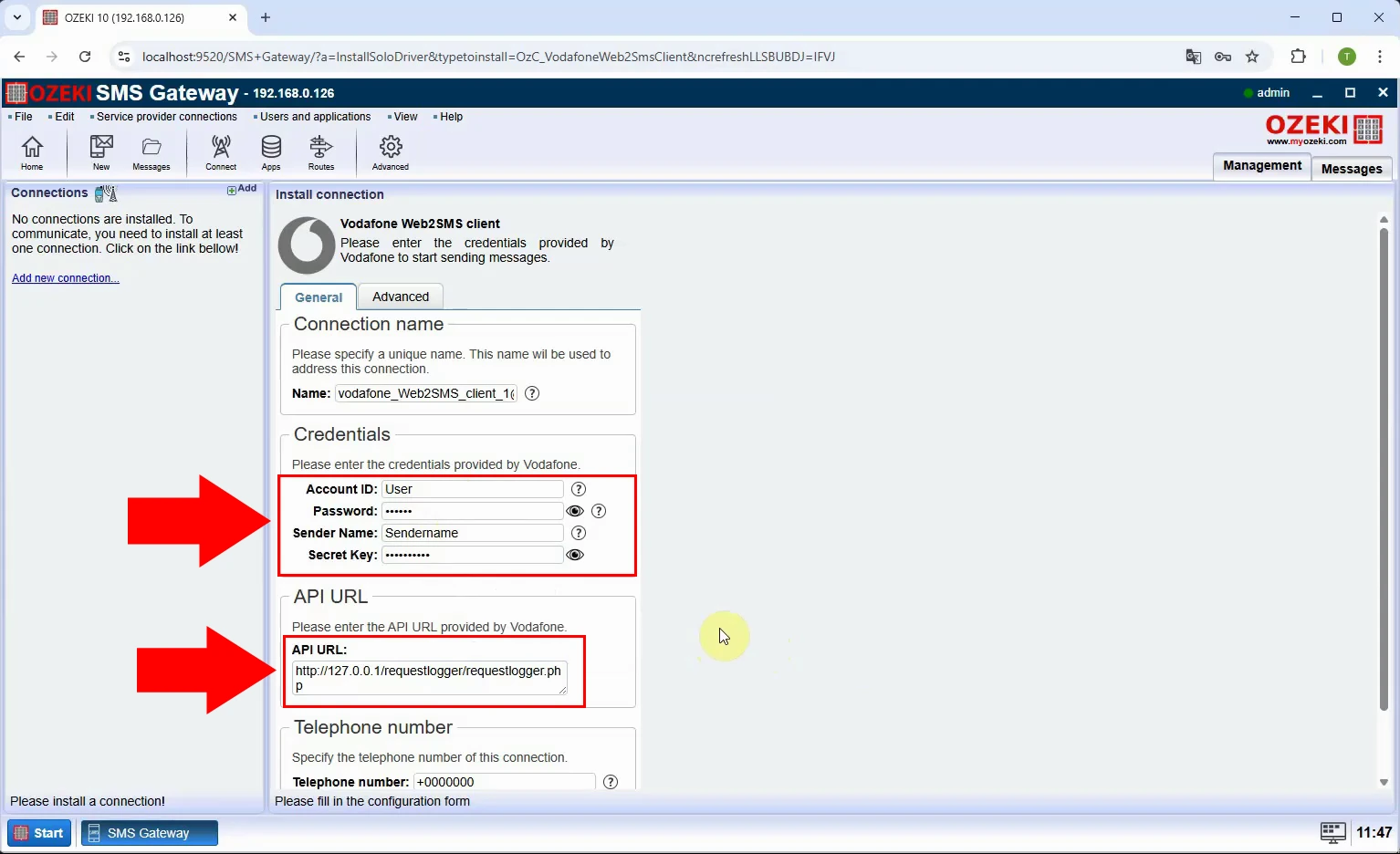
Once the client is installed, the configuration form opens automatically where you must fill in your Vodafone-provided credentials. Enter your Account ID, Password, Sender Name, and Secret Key in the Credentials section, as highlighted by the red arrows. Additionally, provide the API URL supplied by Vodafone and your telephone number, then save the settings to complete the connection configuration.
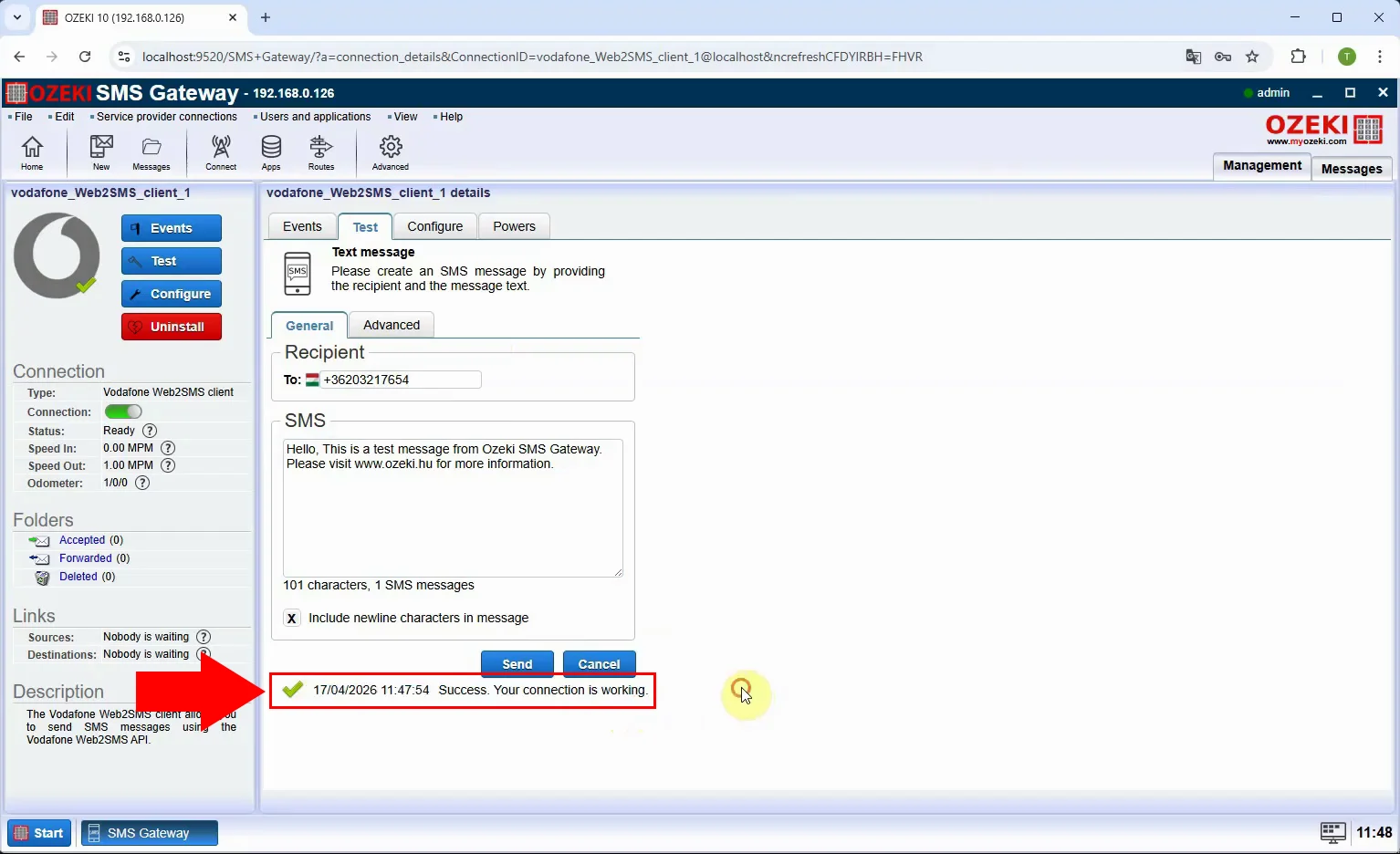
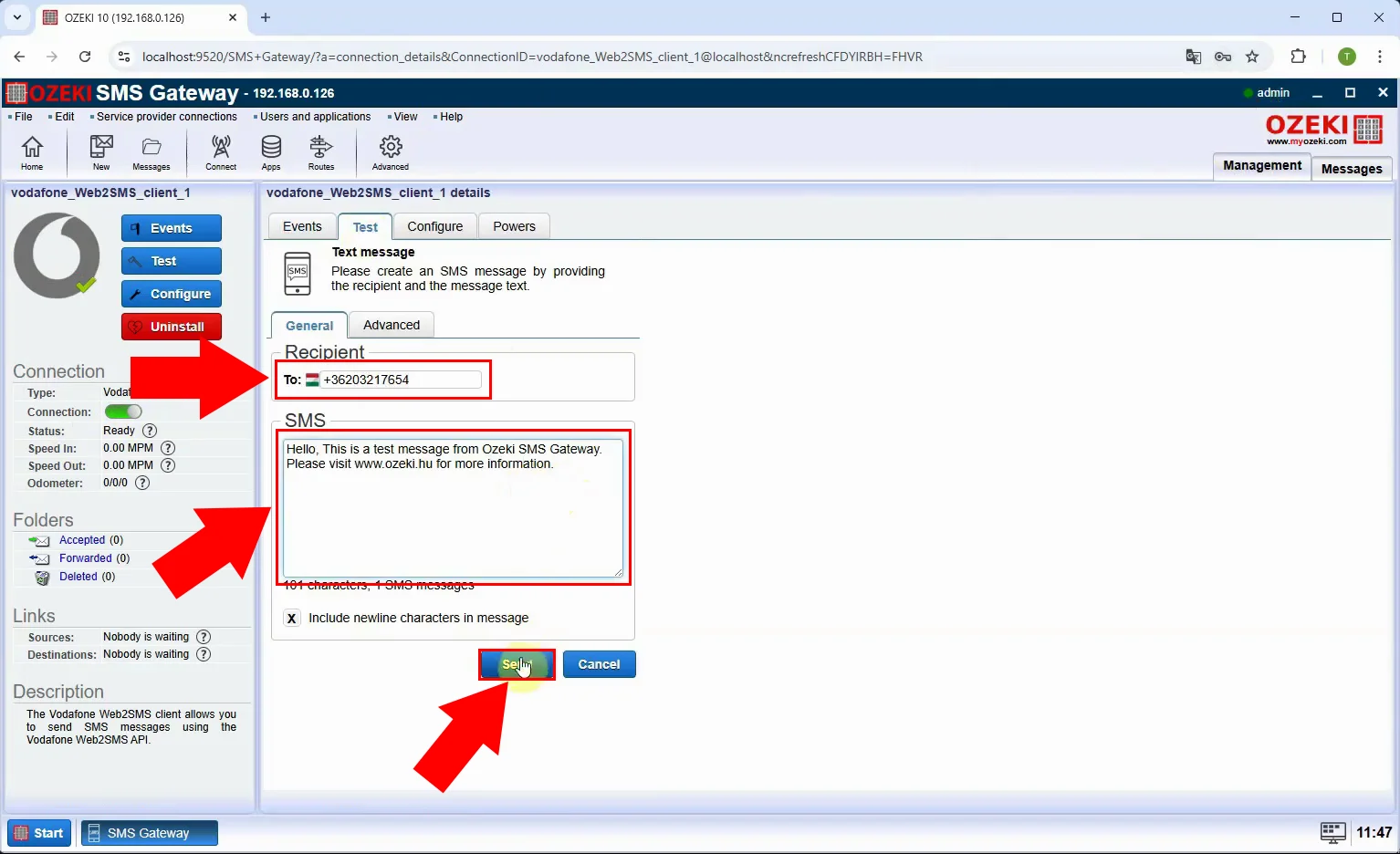
To verify the connection is working correctly, navigate to the connection's detail page and click the "Test" tab. Enter the recipient's phone number in the "To:" field and type a test message body in the SMS text area. Click the "Send" button (highlighted with a red arrow) to dispatch the test message through the Vodafone Web2SMS API.
After clicking Send, the gateway processes the request and displays a confirmation message below the SMS form. A green checkmark appears alongside the text "Success. Your connection is working.", confirming that the test SMS was delivered successfully via the Vodafone Web2SMS client. This confirms that the Vodafone Web 2 SMS service connection is fully configured and operational in your Ozeki SMS Gateway.