
How to send SMS using the Ozeki MCP SMS Gateway with the MCP Inspector
This guide walks you through using the MCP Inspector tool to connect to Ozeki SMS Gateway and send an SMS message through the MCP protocol. By following this tutorial, you will learn how to launch the MCP Inspector, configure it to connect to your gateway using a Streamable HTTP transport and an API key, and use the built-in SMS tool to send a test message.
What is MCP Inspector?
MCP Inspector is an open-source developer tool provided by the Model Context Protocol project. It allows you to connect to any MCP-compatible server, browse the tools it exposes, and invoke them directly from a web interface. It is particularly useful for testing and verifying that your MCP server is working correctly before integrating it into a larger workflow.
MCP Inspector connection details
# Launch MCP Inspector using npx
npx -y @modelcontextprotocol/inspector

# In the MCP Inspector interface, use the following connection settings:
# Transport type: Streamable HTTP
# Proxy setting: Via Proxy
# Server URL (replace {address} with your Ozeki SMS Gateway host IP):
http://{address}:9529/mcp

# Custom Headers:
# Authorization (replace with your API key):
Bearer abcd1234
Steps to follow
We assume Ozeki SMS Gateway is already installed on your system
and you have already created an MCP user account with an API key.
You will also need Node.js installed on your system,
as MCP Inspector is launched via npx.
Read more about the MCP inspector at: Model Context Protocol (MCP) Inspector
- Copy the MCP server URL from the MCP user
- Launch MCP Inspector
- Configure the transport type and server URL
- Enable authorization and connect
- Send an SMS and verify the result
How to send SMS using the Ozeki MCP SMS Gateway with the MCP Inspector video
The following video shows how to connect to Ozeki SMS Gateway using MCP Inspector and send an SMS message step-by-step. The video covers launching the inspector, configuring the connection, and invoking the Send SMS tool.
Step 1 - Copy the MCP server URL from the MCP user
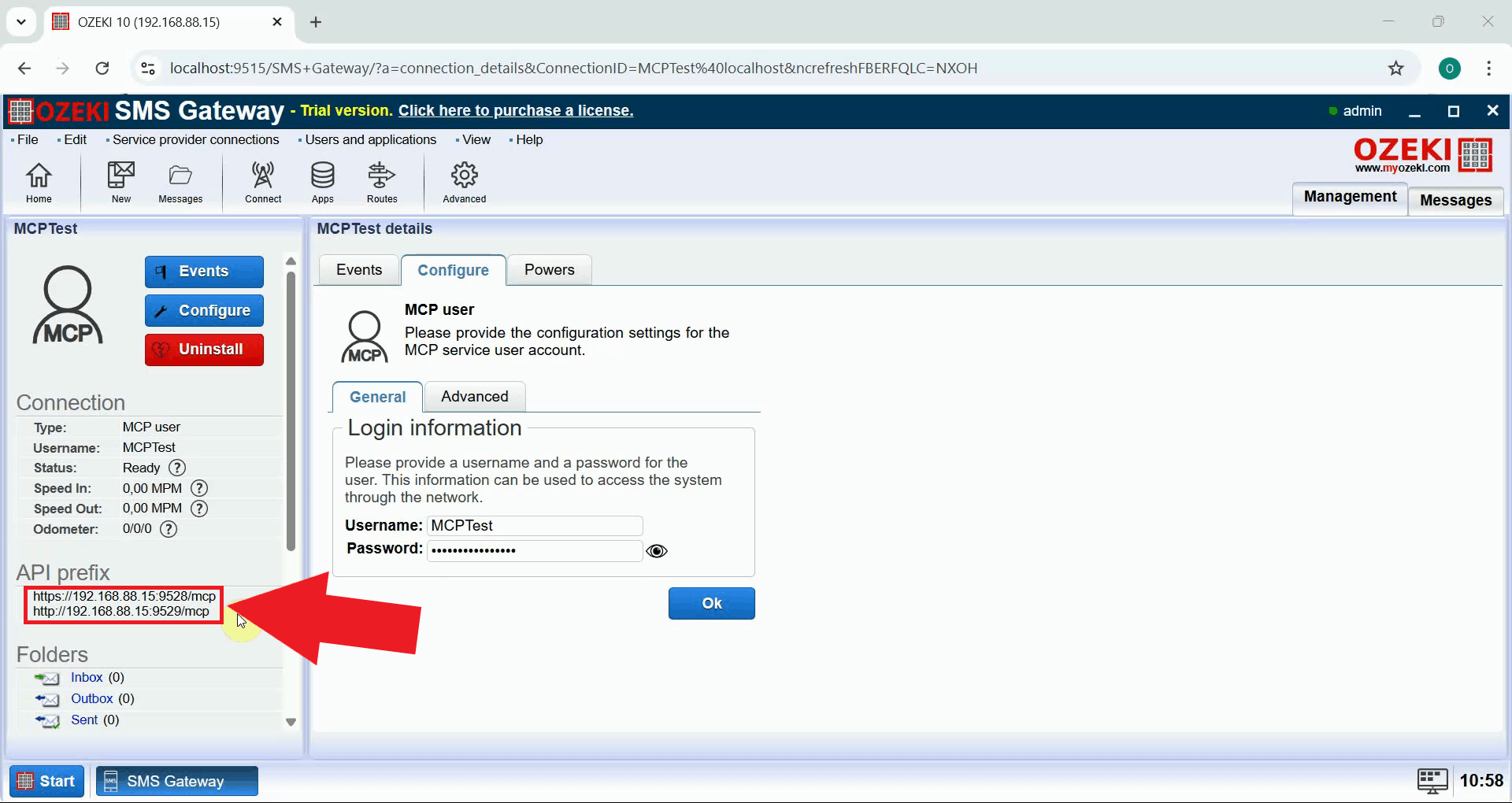
Open Ozeki SMS Gateway in your browser and navigate to the MCP user you created earlier.
On the MCP user details page, locate the server URL at the API prefix section.
This URL is the endpoint that MCP Inspector will connect to, and it typically follows the format
http://{address}:9529/mcp. Copy this URL as you will need it in the next steps (Figure 1).
Step 2 - Launch MCP Inspector
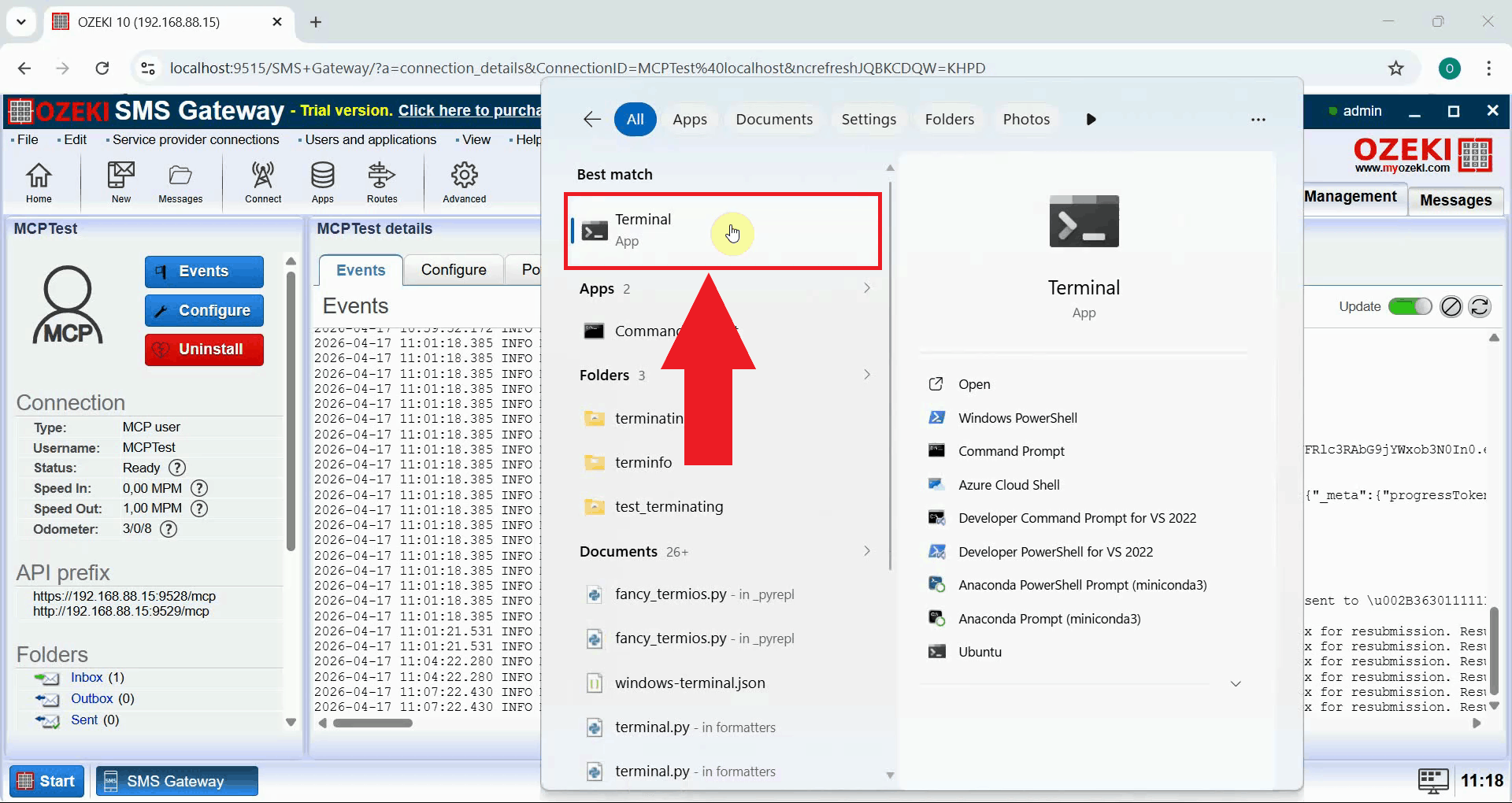
Open a terminal window by searching for Terminal in the start menu and clicking on the application. The terminal provides a command-line interface where you'll run the MCP Inspector (Figure 2).
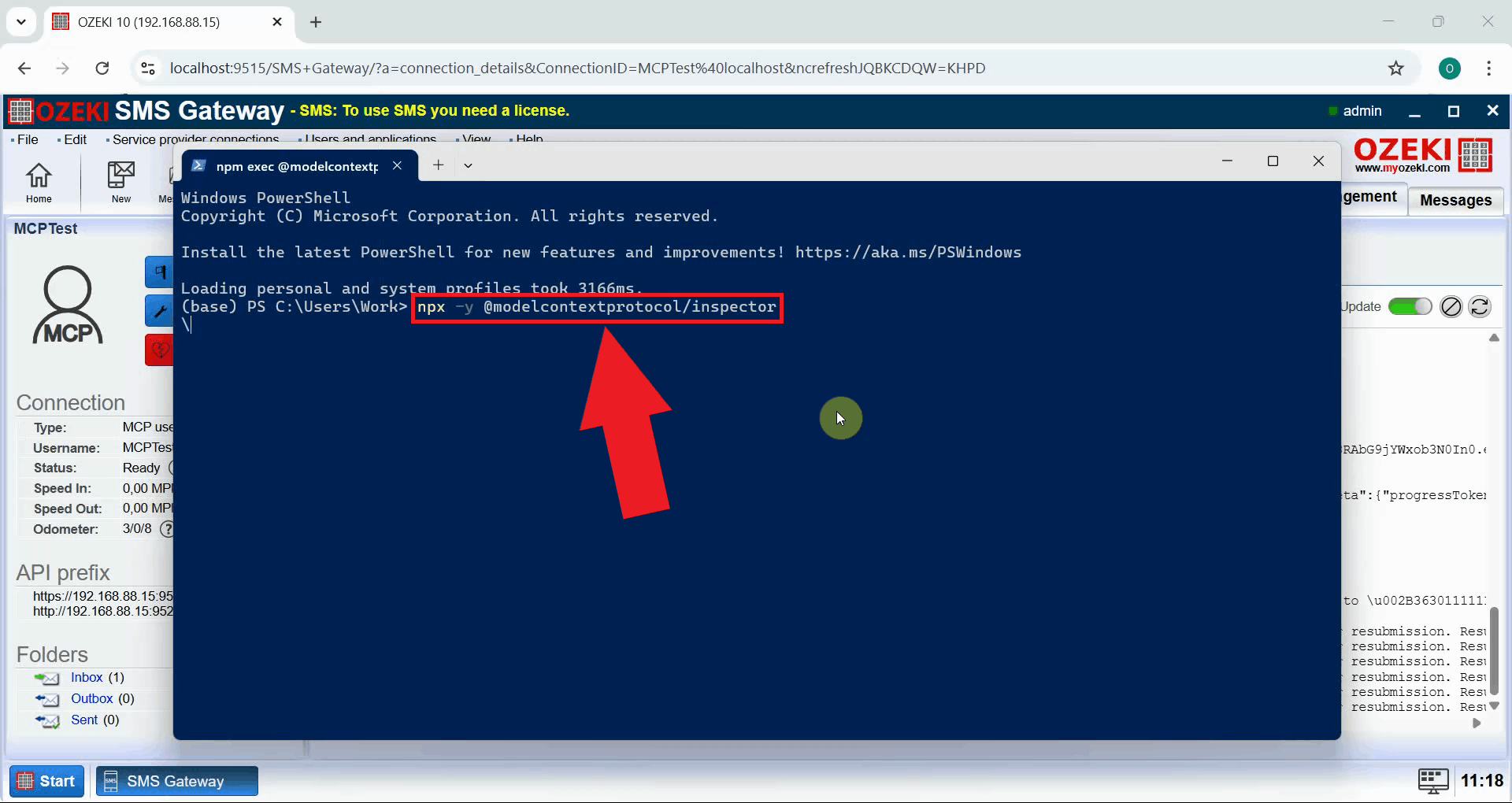
In the PowerShell terminal, execute the command npx -y @modelcontextprotocol/inspector
to launch the MCP Inspector.
Node.js will fetch the latest version of the tool automatically and open it in
your default web browser (Figure 3).
npx -y @modelcontextprotocol/inspector
Step 3 - Configure the transport type and server URL
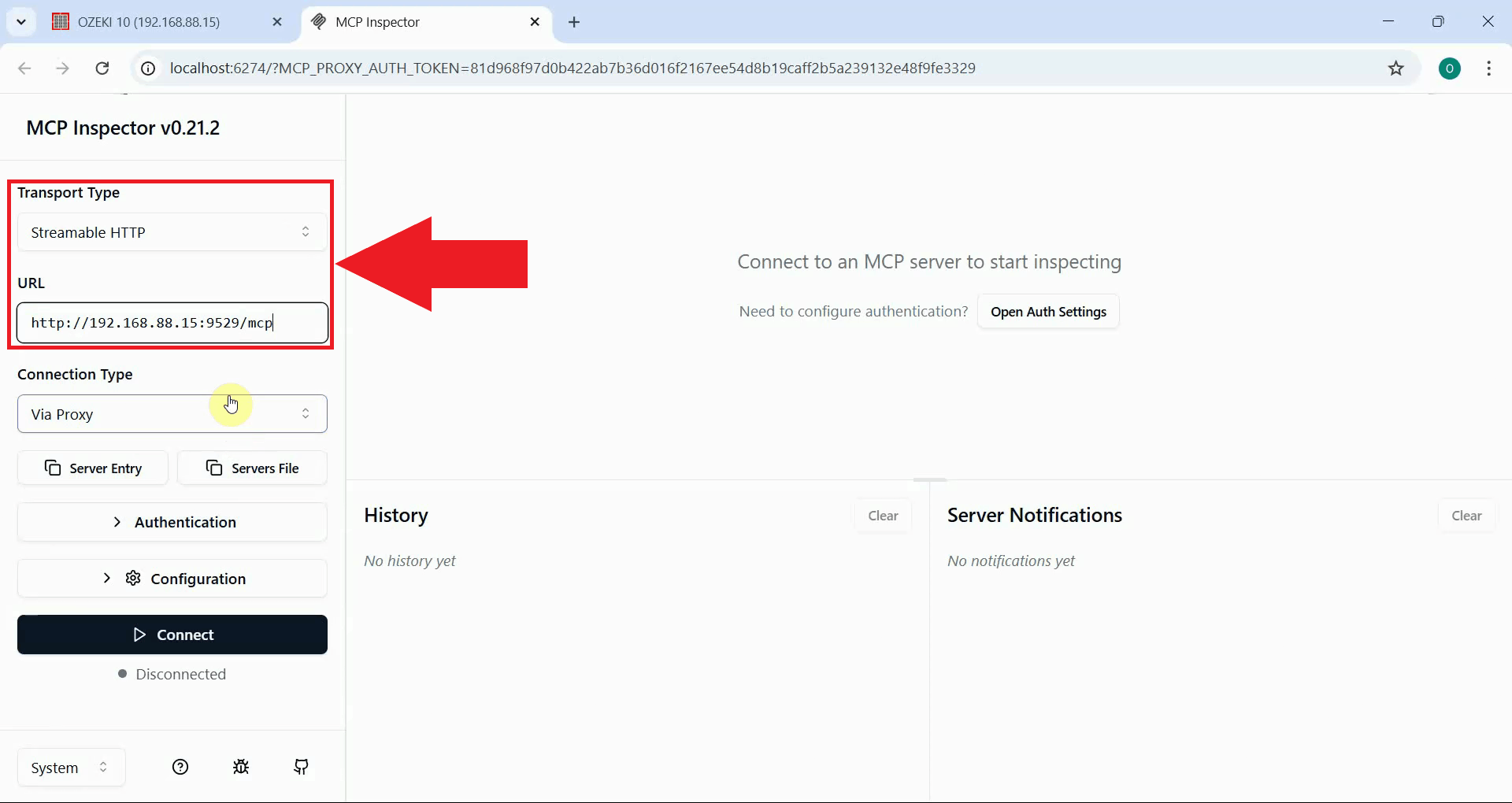
In the MCP Inspector interface, locate the transport type selector and choose Streamable HTTP from the available options. This transport type is required for connecting to Ozeki SMS Gateway over HTTP. Enter the server URL you copied from the MCP user (Figure 4).
Step 4 - Enable authorization and connect
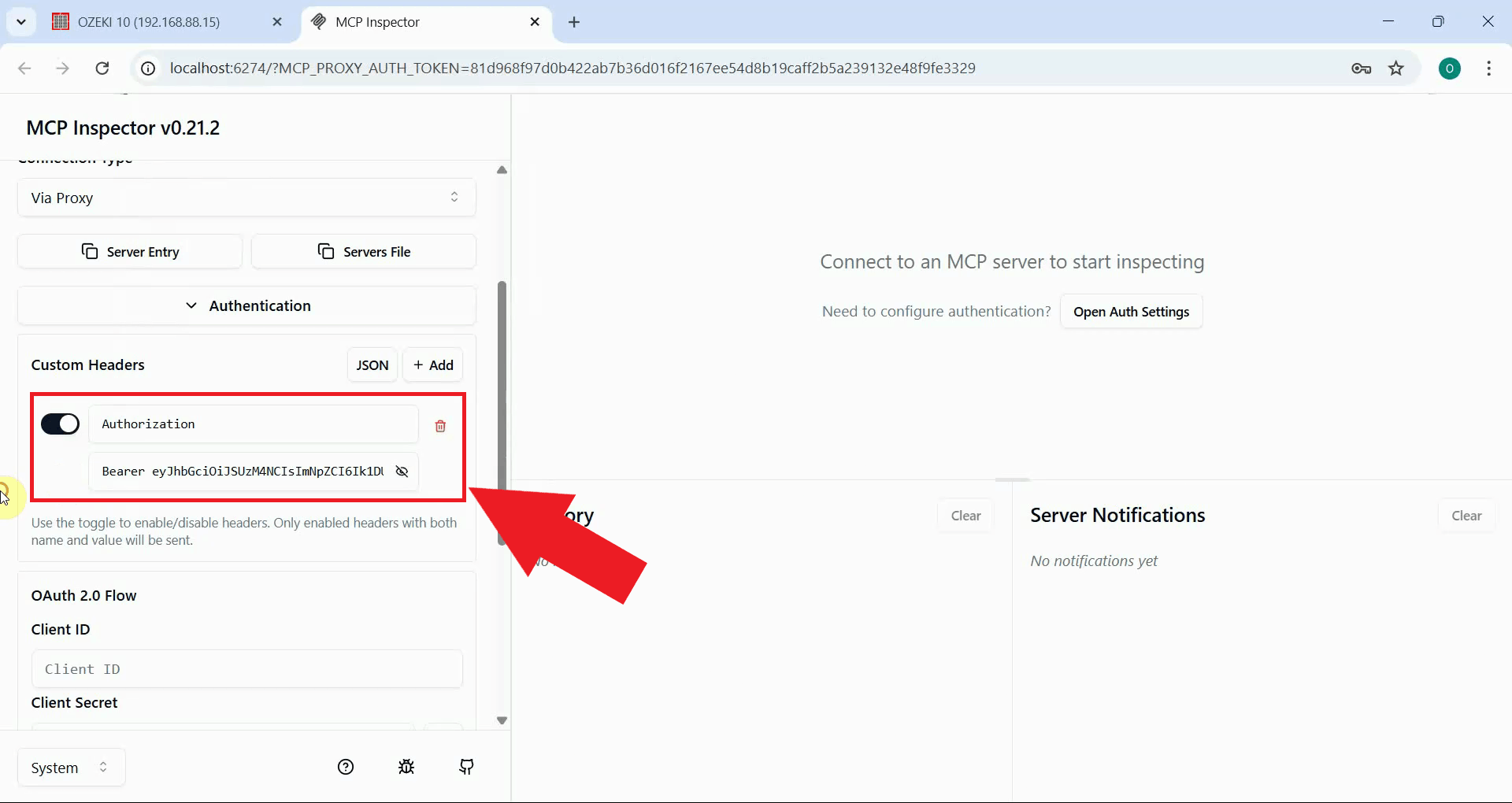
Locate the custom headers section in the MCP Inspector interface and enable the
Authorization header. In the value field, enter Bearer followed
by the API key you generated for your MCP user account (Figure 5).
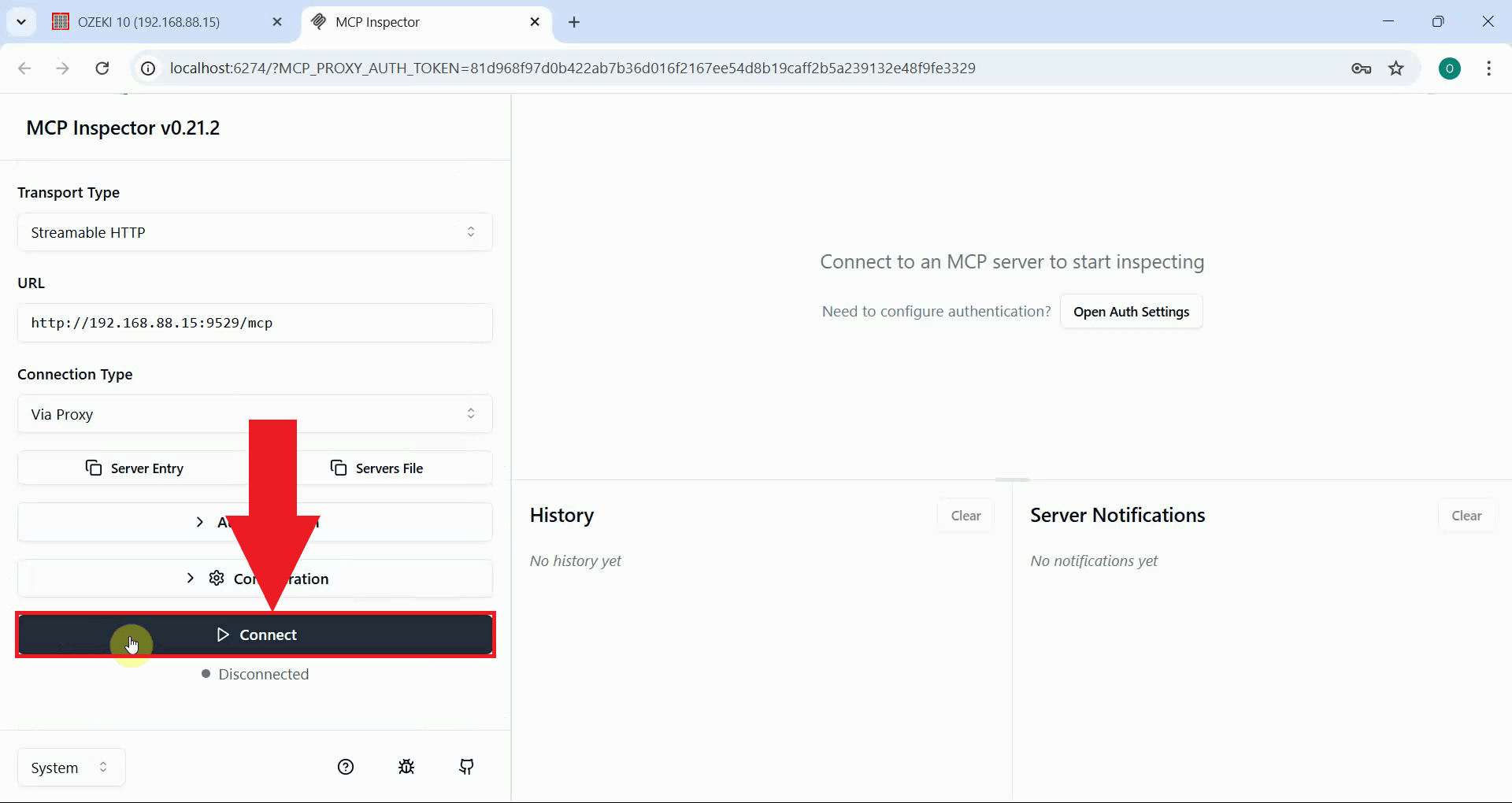
Once the server URL and authorization header are configured, click the Connect button. MCP Inspector will establish a connection to your Ozeki SMS Gateway MCP server (Figure 6).
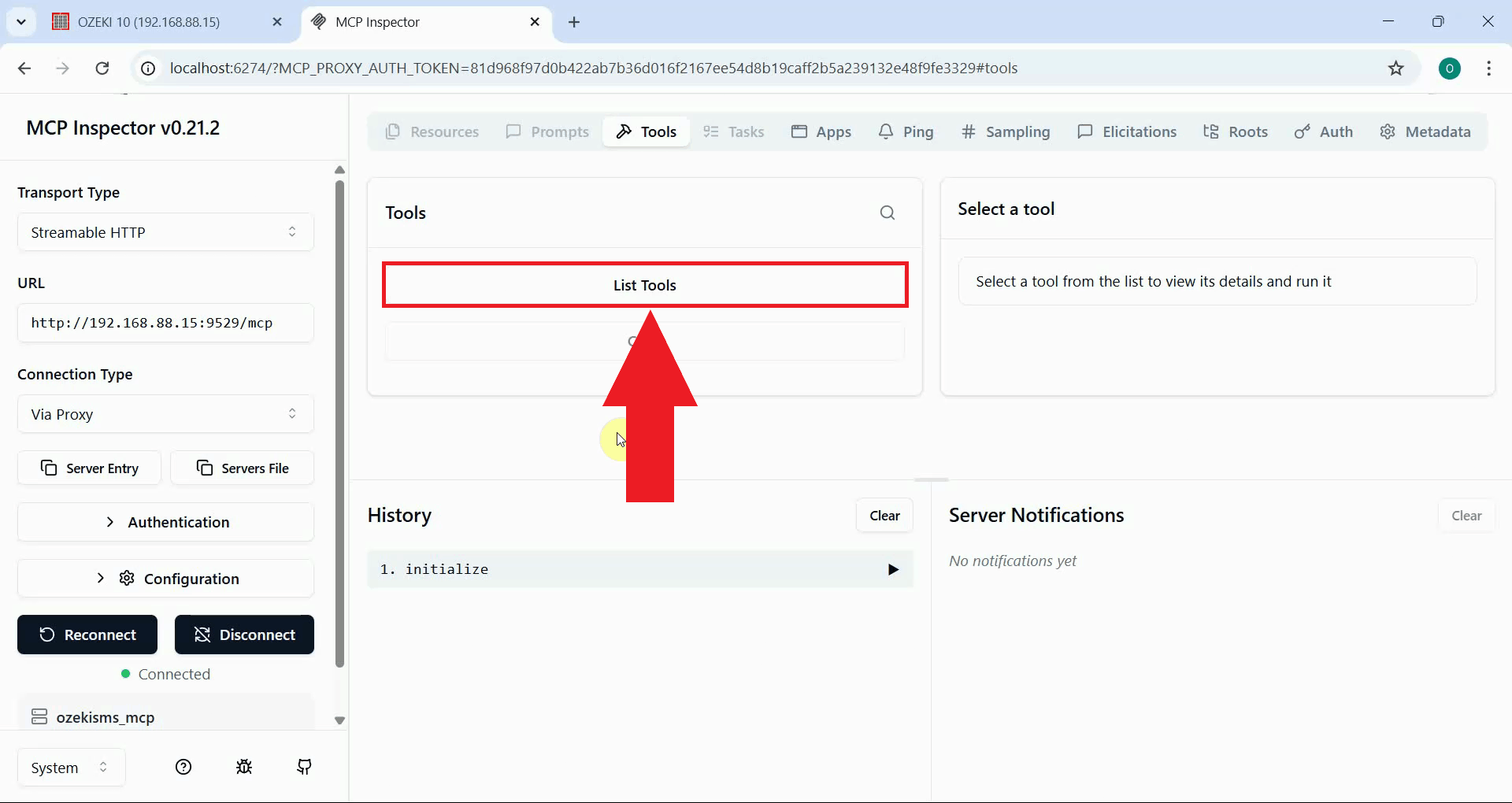
Step 5 - Send an SMS and verify the result
Once the connection is successful, click the List Tools button to display all available tools provided by the Ozeki SMS Gateway MCP server (Figure 7).
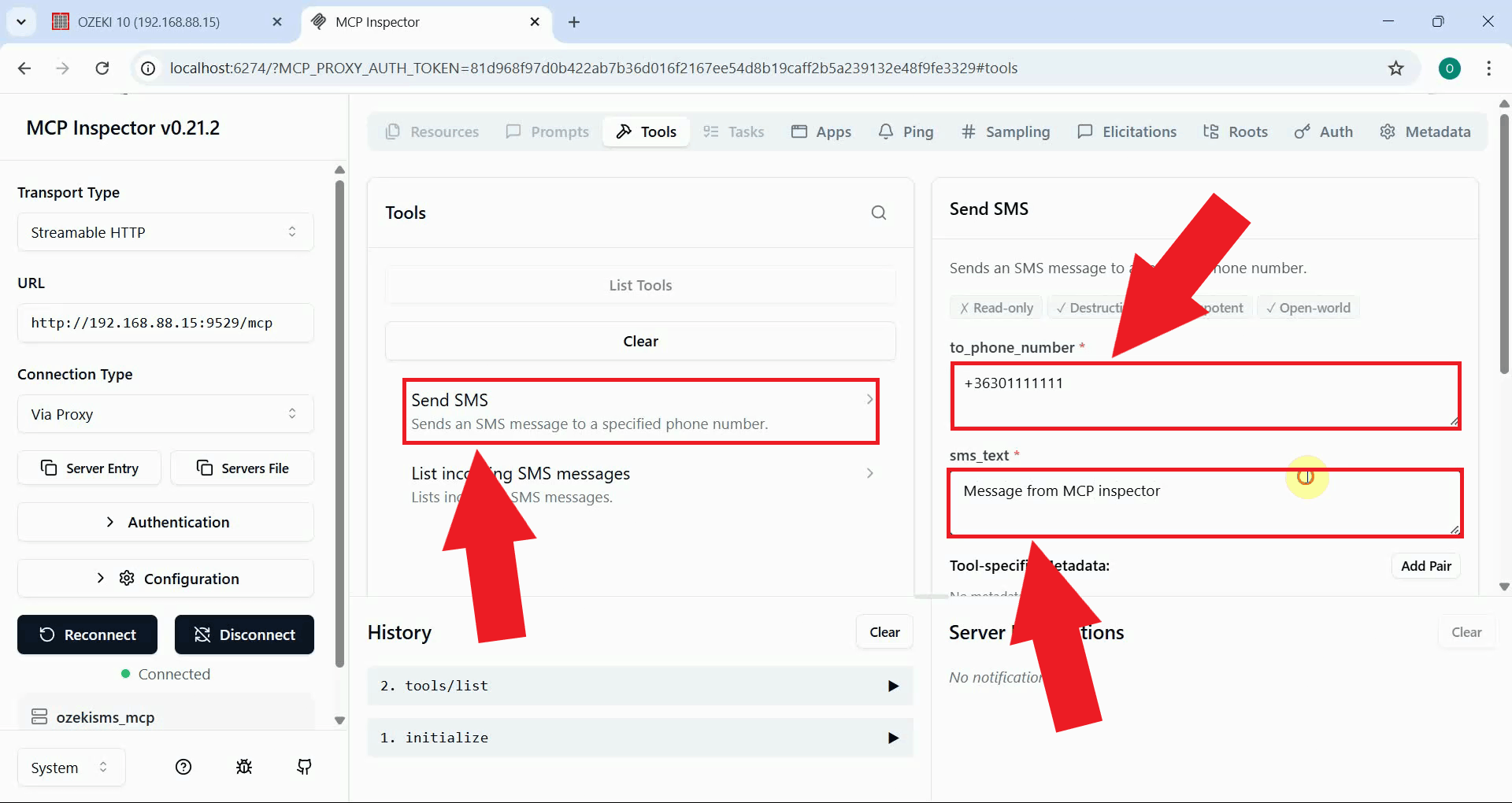
Select the Send SMS tool and fill in the required parameters. Enter the recipient's phone number and type the message text you want to send (Figure 8).
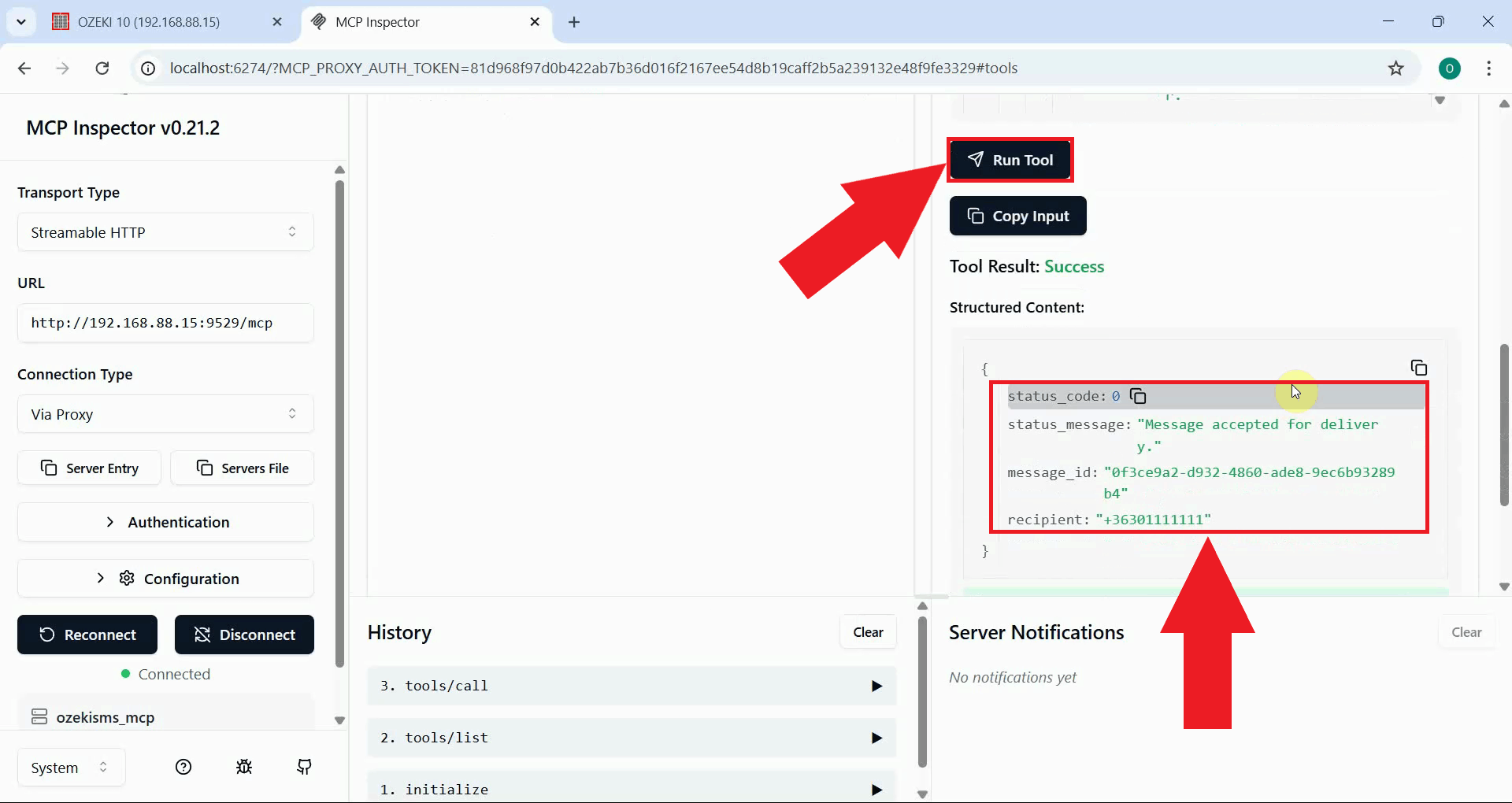
Click the Run tool button to send the SMS message. MCP Inspector will display the result returned by the gateway, confirming whether the message was submitted successfully (Figure 9).
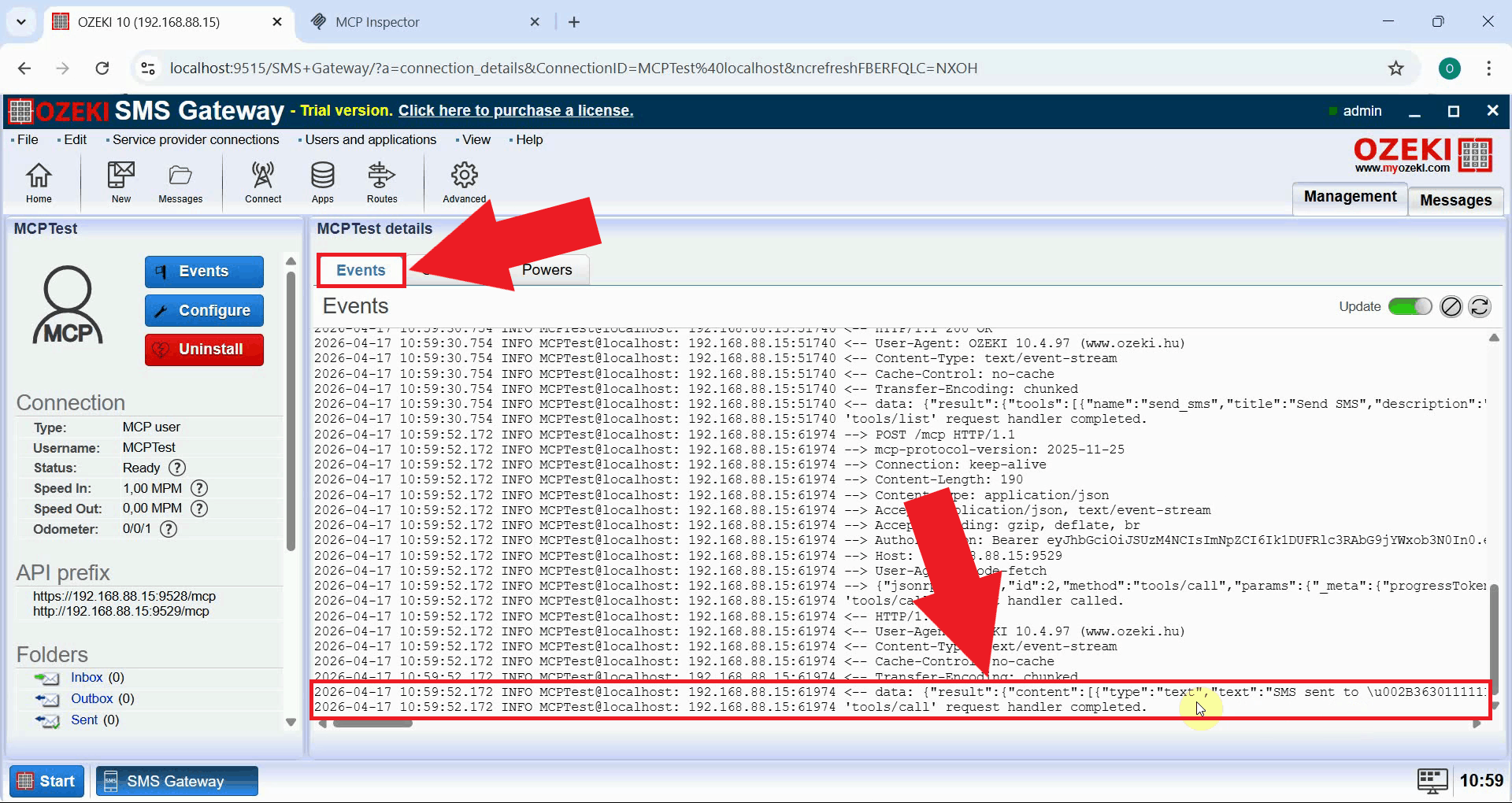
To confirm that the message was processed by the gateway, switch back to Ozeki SMS Gateway in your browser and open the Event logs for the MCP user. You should see a log entry showing the outgoing message with the recipient number and message text (Figure 10).
Conclusion
You have successfully connected MCP Inspector to Ozeki SMS Gateway and sent an SMS message using the MCP protocol. This confirms that your MCP user account and API key are correctly configured, and that any MCP-compatible AI agent can now use the same connection details to send SMS messages through your gateway.