
How to send SMS through SMPP from OpenCode
This guide explains how to connect OpenCode to Ozeki SMS Gateway's built in SMS MCP server, enabling the AI assistant to send and receive SMS messages through your own on-premises SMS gateway. You will learn how to install Ozeki SMS Gateway, create an MCP user account, generate an API key, register the MCP endpoint in OpenCode, and verify the setup by sending a test message.

Solution: How to send SMS from OpenCode
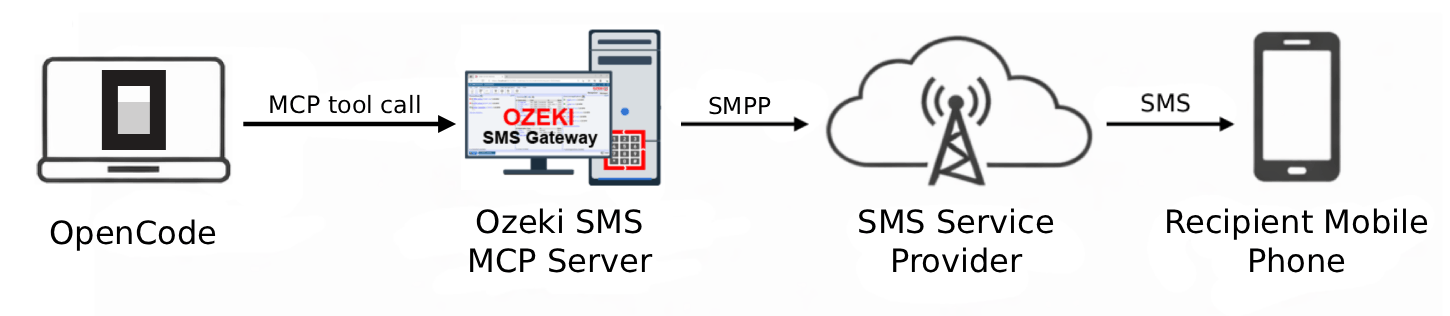
OpenCode connects to the SMPP SMS MCP Server through the MCP protocol, where OpenCode acts as the MCP client and Ozeki SMS Gateway acts as the MCP server. Ozeki SMS Gateway is installed on your local machine or server and connects to the SMS service provider over the internet using an SMPP client connection. When an SMS is sent, it first travels from OpenCode to the Ozeki SMS Gateway as an MCP tool call, and the gateway forwards it to the SMS service provider over SMPP, which delivers it to the recipient's mobile phone.
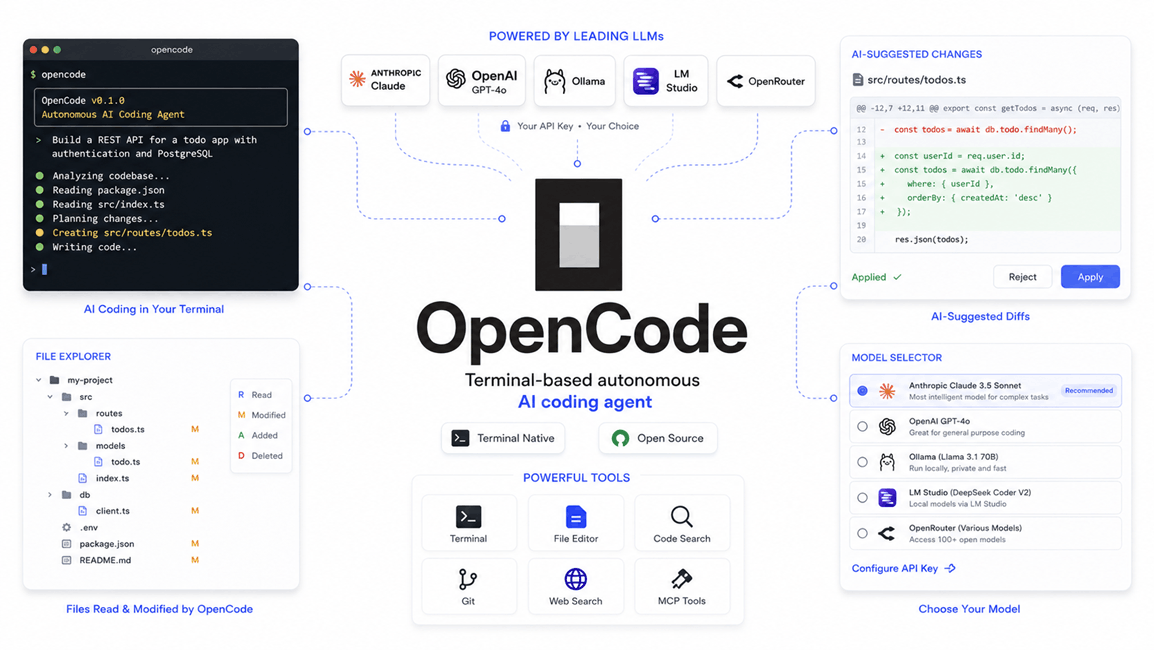
What is OpenCode?
OpenCode is an AI-powered coding assistant extension for Visual Studio Code that helps developers write code faster and more efficiently. It provides intelligent code completion, generation, and refactoring suggestions powered by large language models.
What is an SMPP SMS MCP Server?
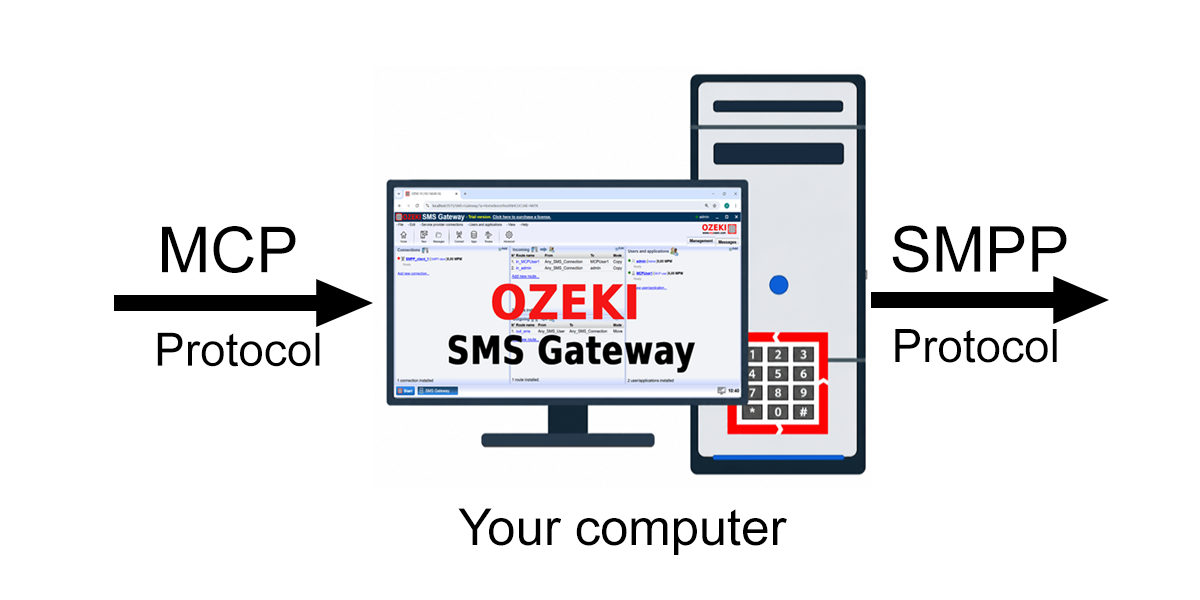
An SMPP SMS MCP Server is a standardized software bridge that uses the Model Context Protocol to connect AI assistants (like Claude) to an SMS gateway system such as Ozeki SMS Gateway, which in turn delivers messages to the mobile network over an SMPP client connection. It exposes tools like "send_message" or "list_incomings" that an AI can autonomously call to perform real-world texting tasks without custom coding. This allows users to simply ask an AI to "send John a reminder text" and have the AI securely execute the action through the server. The SMS MCP Server built into Ozeki SMS Gateway also makes receiving SMS messages possible.
Download Ozeki SMS Gateway
To use this solution you need to install the SMS Gateway on your system.
Download the software: SMS Gateway
https://ozeki-sms-gateway.com/p_727-download-sms-gateway.html
Steps to follow
You will need OpenCode installed on your system. If you have not set it up yet, follow our OpenCode installation guide.
- Install Ozeki SMS Gateway
- Setup the SMPP SMS connection
- Create an MCP user account
- OpenCode SMS MCP Server Config
- Add the SMS MCP Server config to OpenCode
- Send a test SMS
- Check the SMS in the SMS Gateway logs
Install Ozeki SMS Gateway
For a full tutorial on installing Ozeki SMS Gateway, check out our How to install Ozeki SMS Gateway on Windows guide.
Before you can use the SMS MCP Server, you need to install Ozeki SMS Gateway on your Windows machine or server. Download the installer zip file from the website, extract it, and run the executable to complete the installation. Once installed, the gateway will start automatically and its web-based management interface will be accessible from your browser.
Setup the SMPP SMS connection
For a full tutorial on setting up an SMPP Client connection, check out our SMPP Client Connection guide.
Before creating the MCP user, you need to connect Ozeki SMS Gateway to the mobile network by setting up an SMPP client. In the Connections panel, select Add new connection, and install a new SMPP client connection. Enter the host, port, and credentials provided by your SMS service provider, then save and activate the connection to bring the gateway online.
Create an MCP user account
For a full tutorial on creating an MCP User, check out our Create an MCP User guide.
Click Add new user/application, and select the MCP user type from the list. Enter a username and password for the account, then open the Advanced tab to generate an API key. Copy this key and store it in a safe location, as you will need it in the next steps.
OpenCode MCP server configuration
# OpenCode configuration file location:
C:\Users\%USERPROFILE%\.config\opencode\opencode.json

# Add the following block to opencode.json
# Replace {address} with your Ozeki SMS Gateway host IP
{
  "$schema": "https://opencode.ai/config.json",
  "mcp": {
    "Ozeki": {
      "type": "remote",
      "url": "http://{address}:9529/mcp",
      "headers": {
        "Authorization": "Bearer your-bearer-token"
      },
      "enabled": true
    }
  }
}
Example prompt
Send an SMS to +36301234567, the message should be "Hello from OpenCode".
Add the SMS MCP Server config to OpenCode
The following video shows how to add the Ozeki SMPP SMS MCP Server to OpenCode step-by-step. The video covers editing the configuration file, launching OpenCode, and verifying the MCP server connection using the status command.
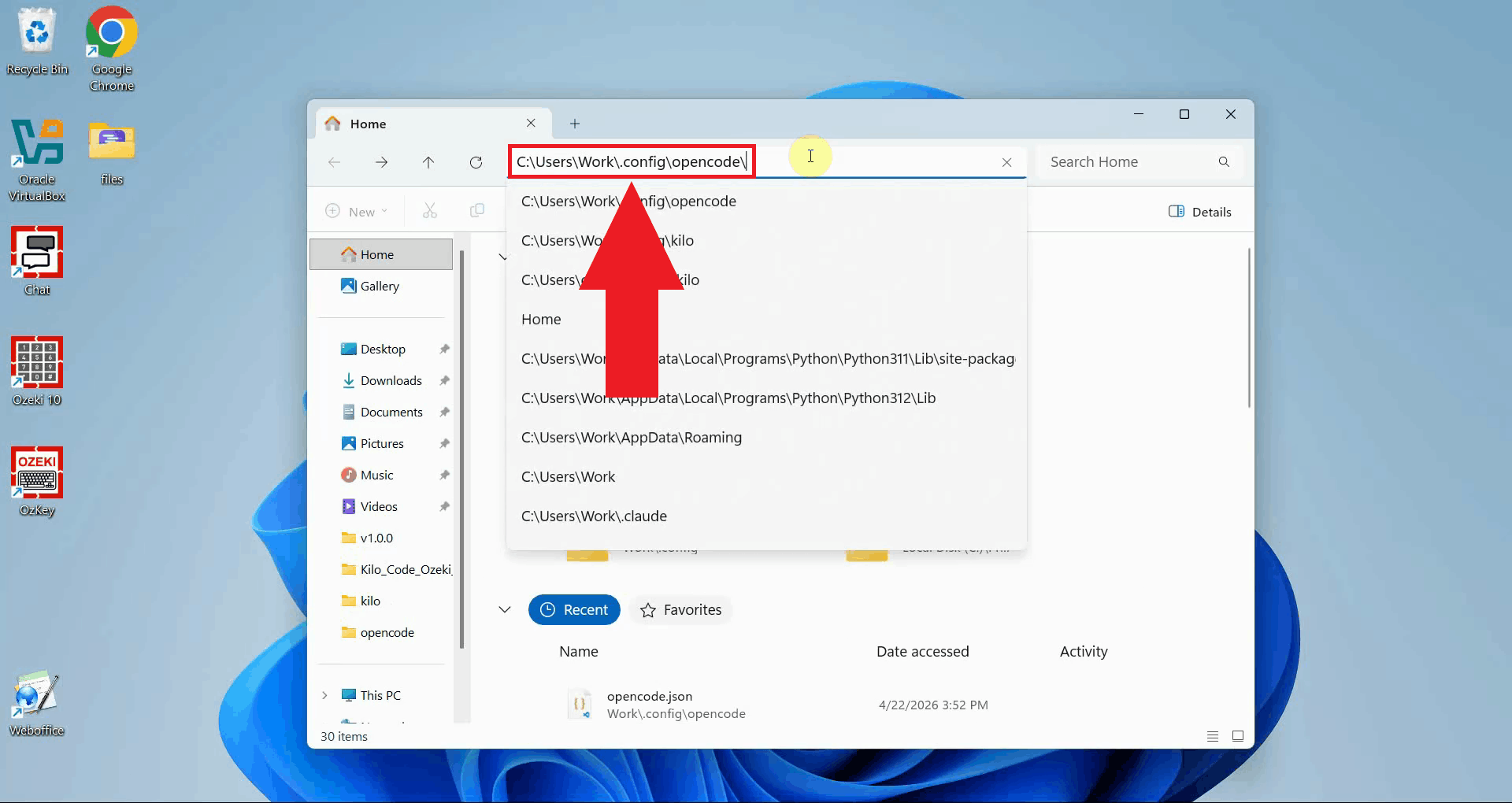
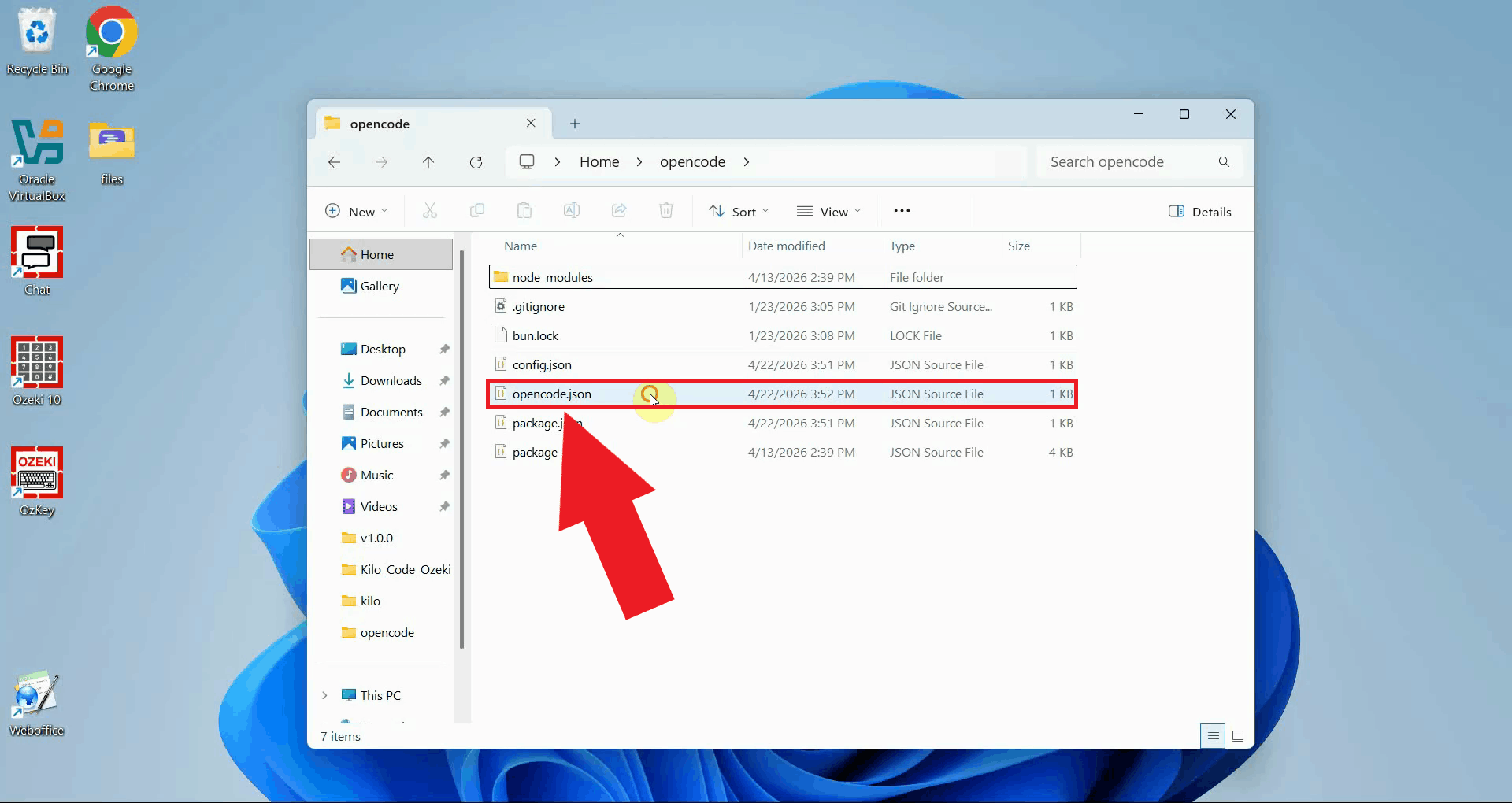
Navigate to the OpenCode configuration folder at
C:\Users\%USERPROFILE%\.config\opencode\ using File Explorer (Figure 1).
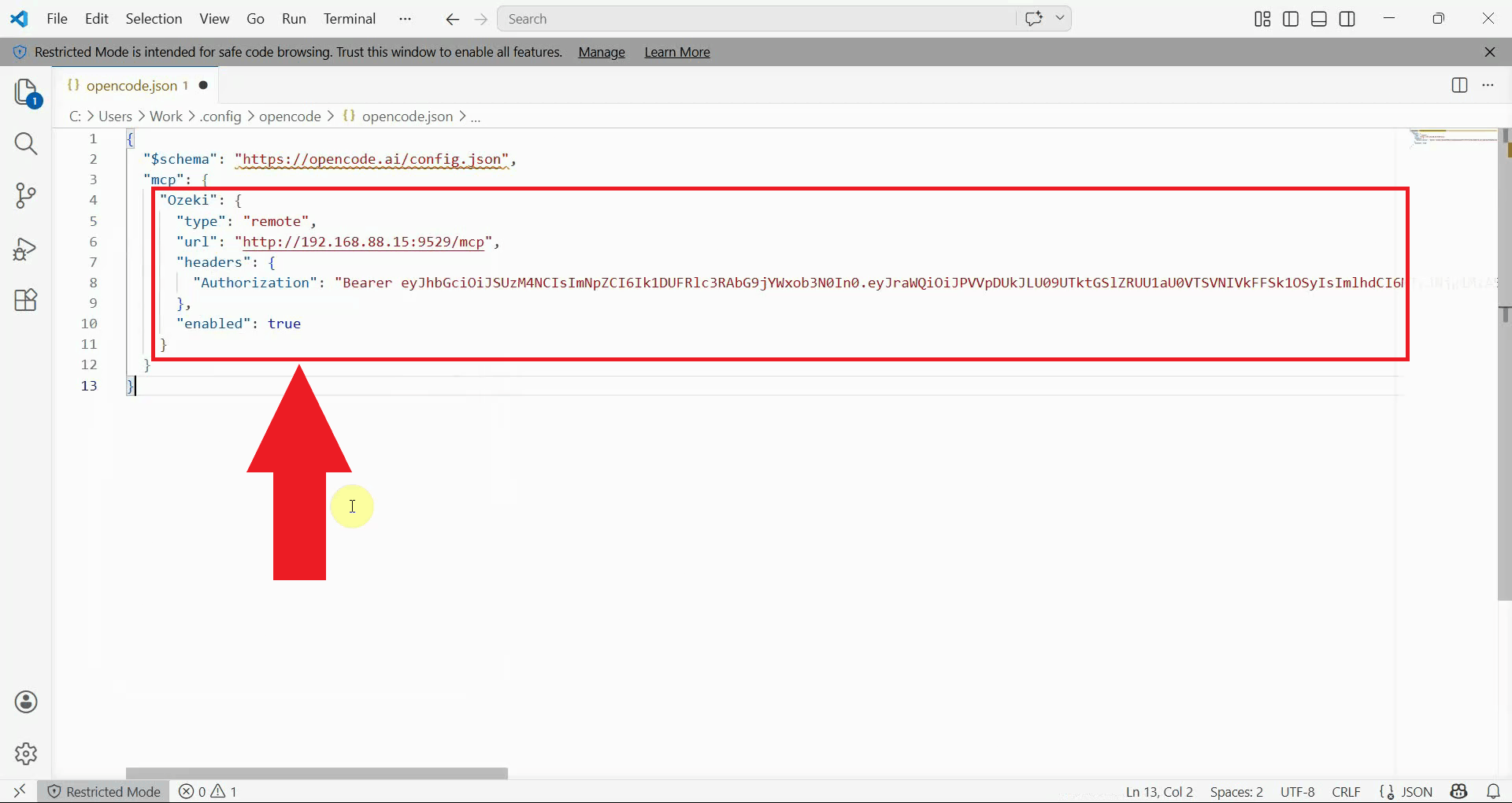
Open the opencode.json file in a text editor such as Notepad. This file
stores all OpenCode configuration, including any MCP servers that OpenCode should
connect to on startup (Figure 2).
Add the Ozeki SMPP SMS MCP Server entry inside the mcp object as shown below.
Replace the URL with the address of your Ozeki SMS Gateway installation and the Bearer
token with the API key you generated for your MCP user account. Save the file after
making the changes (Figure 3).
{
  "$schema": "https://opencode.ai/config.json",
  "mcp": {
    "Ozeki": {
      "type": "remote",
      "url": "http://{address}:9529/mcp",
      "headers": {
        "Authorization": "Bearer your-bearer-token"
      },
      "enabled": true
    }
  }
}
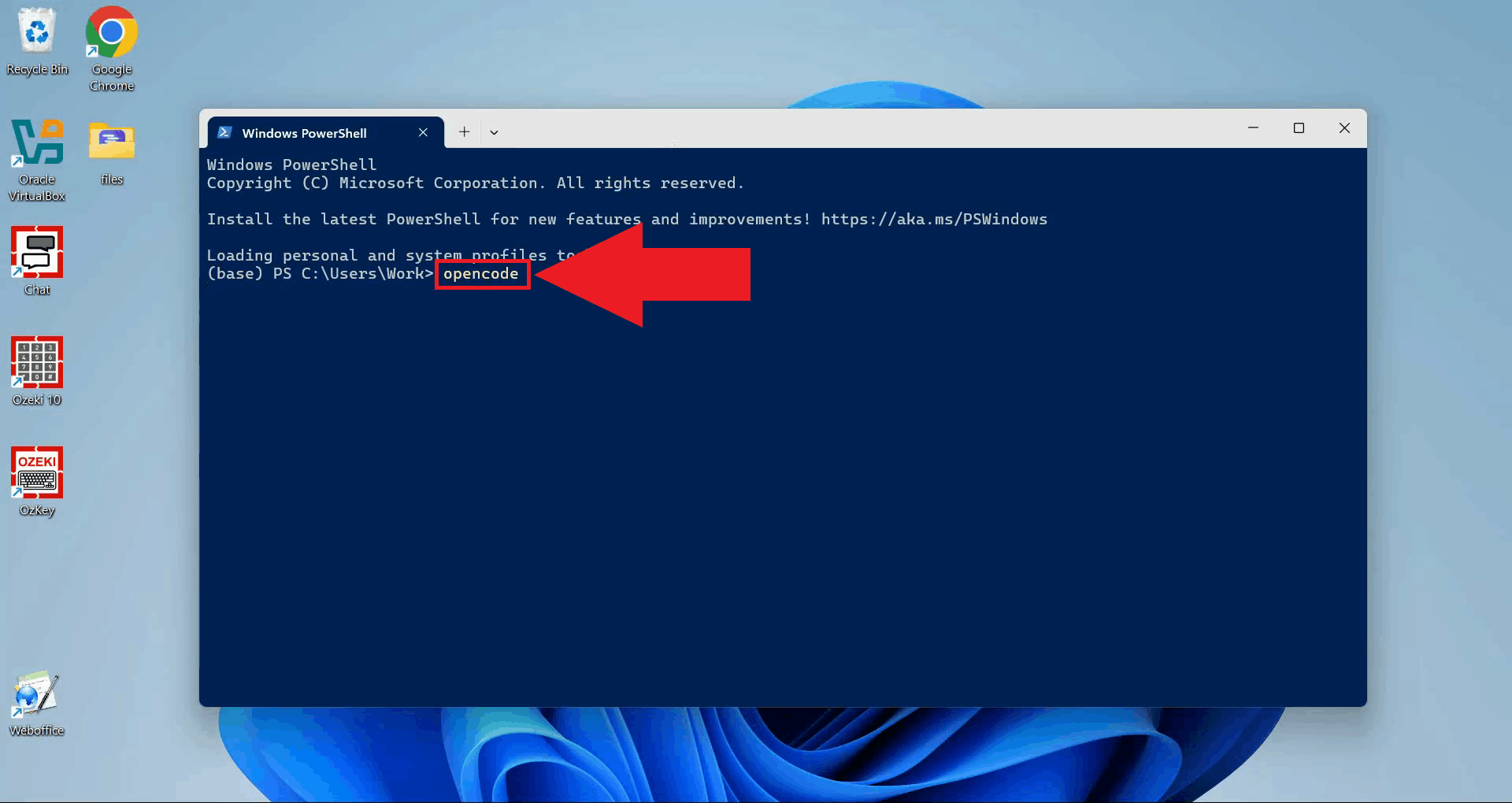
Open a terminal window and navigate to your working directory. Type opencode
and press Enter to launch OpenCode. It is important to start a fresh session after
editing the configuration file so that OpenCode loads the updated MCP server settings (Figure 4).
opencode
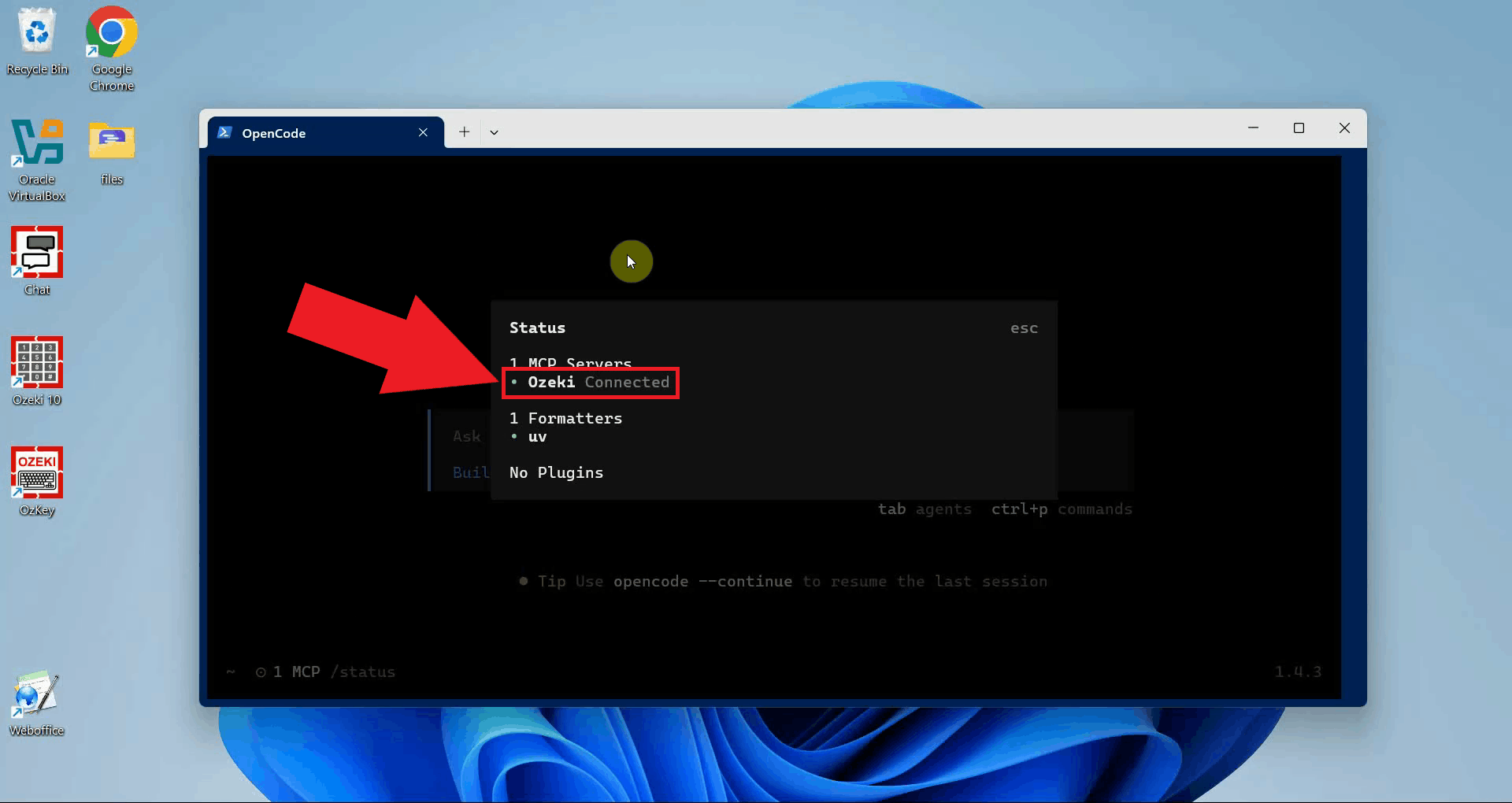
Once OpenCode has started, run the /status command to display the
current connection status of all configured MCP servers.
In the status output, verify that the Ozeki MCP server is listed and its
status shows as connected (Figure 5).
/status
Send a test SMS
The following video shows how to send an SMS message from OpenCode using the Ozeki SMPP SMS MCP Server step-by-step.
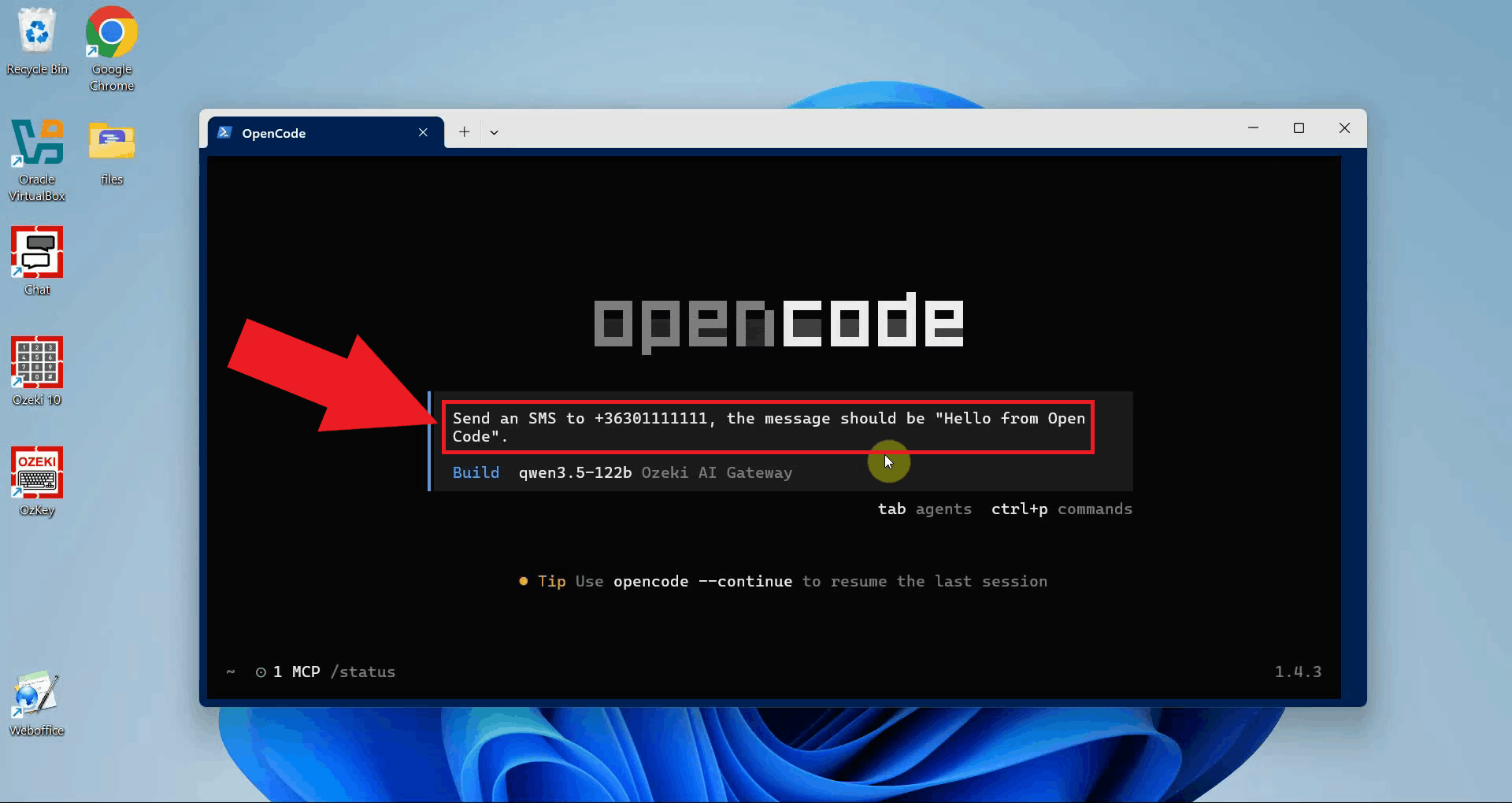
In the OpenCode prompt, type your SMS request in plain language and press Enter. The AI model will interpret the request, select the appropriate MCP tool, and invoke it to deliver the message through the gateway (Figure 6).
Send an SMS to +36301234567, the message should be "Hello from OpenCode".
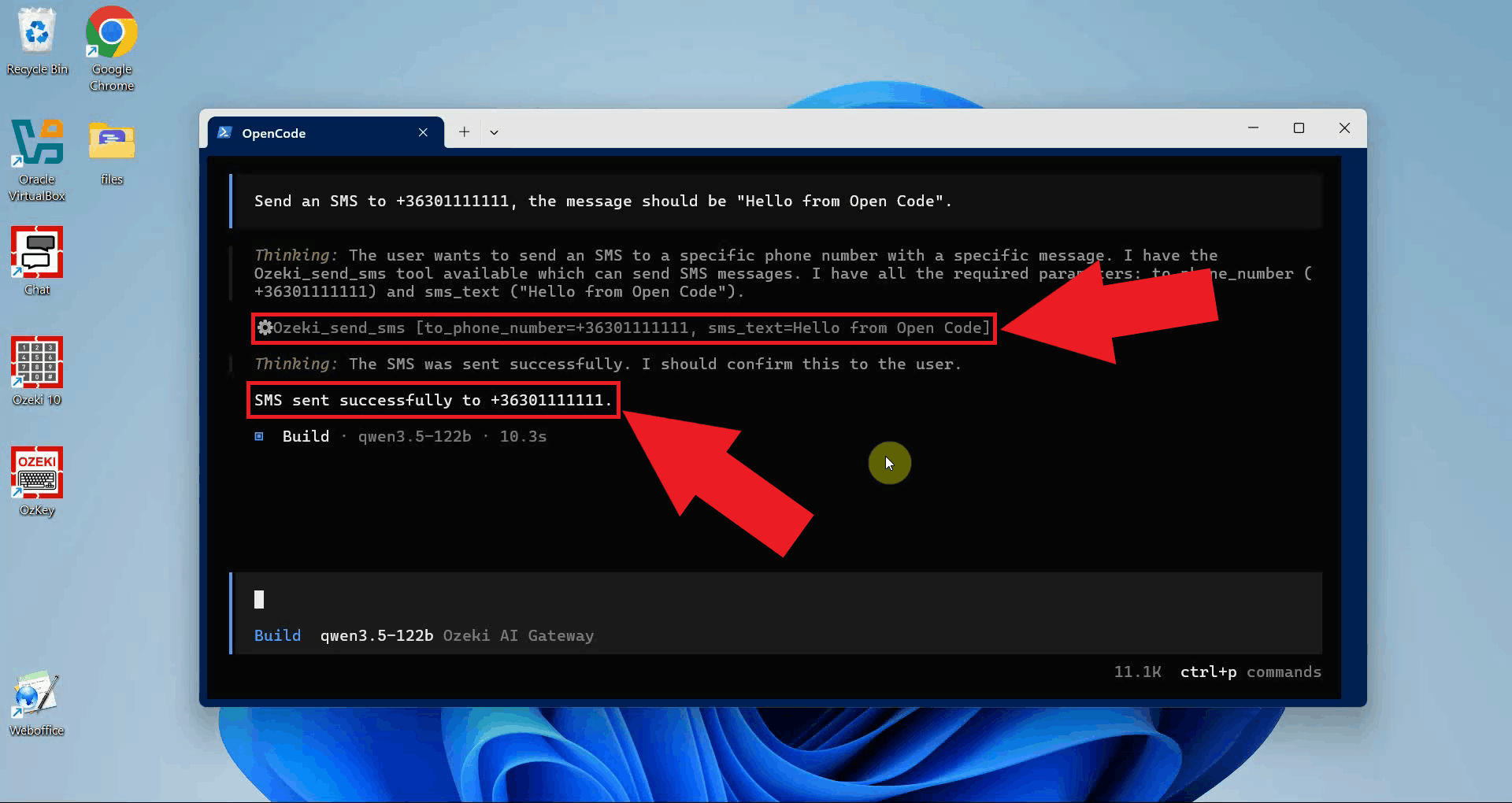
The tool result will appear in the OpenCode terminal. A successful response confirms that the message was submitted to the gateway and handed off for delivery (Figure 7).
Check the SMS in the SMS Gateway logs
The following video shows how to check the SMS in the logs in Ozeki SMS Gateway step-by-step.
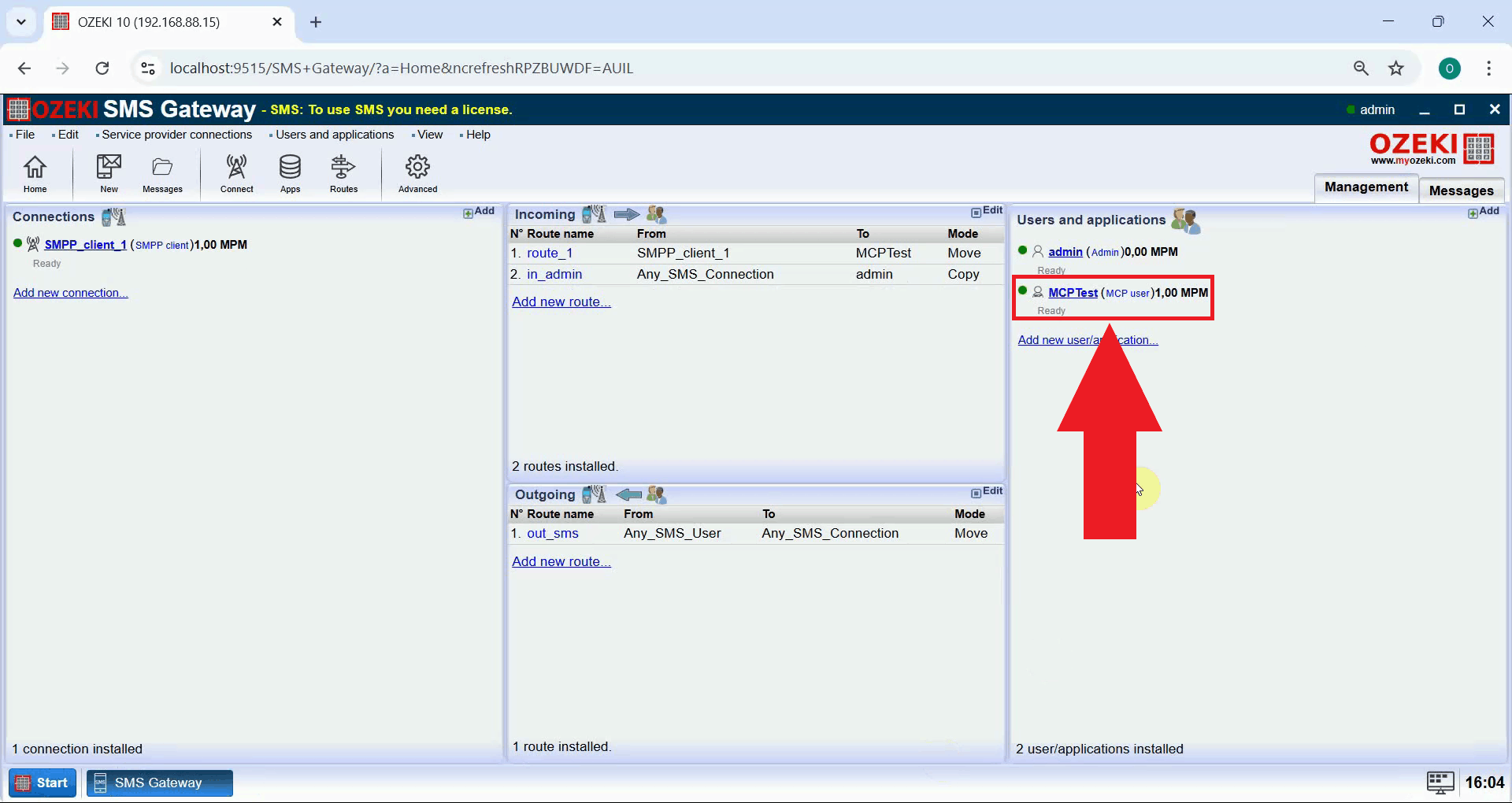
Open Ozeki SMS Gateway in your browser and navigate to the MCP user details page by clicking on the MCP user entry in the Users and applications panel (Figure 8).
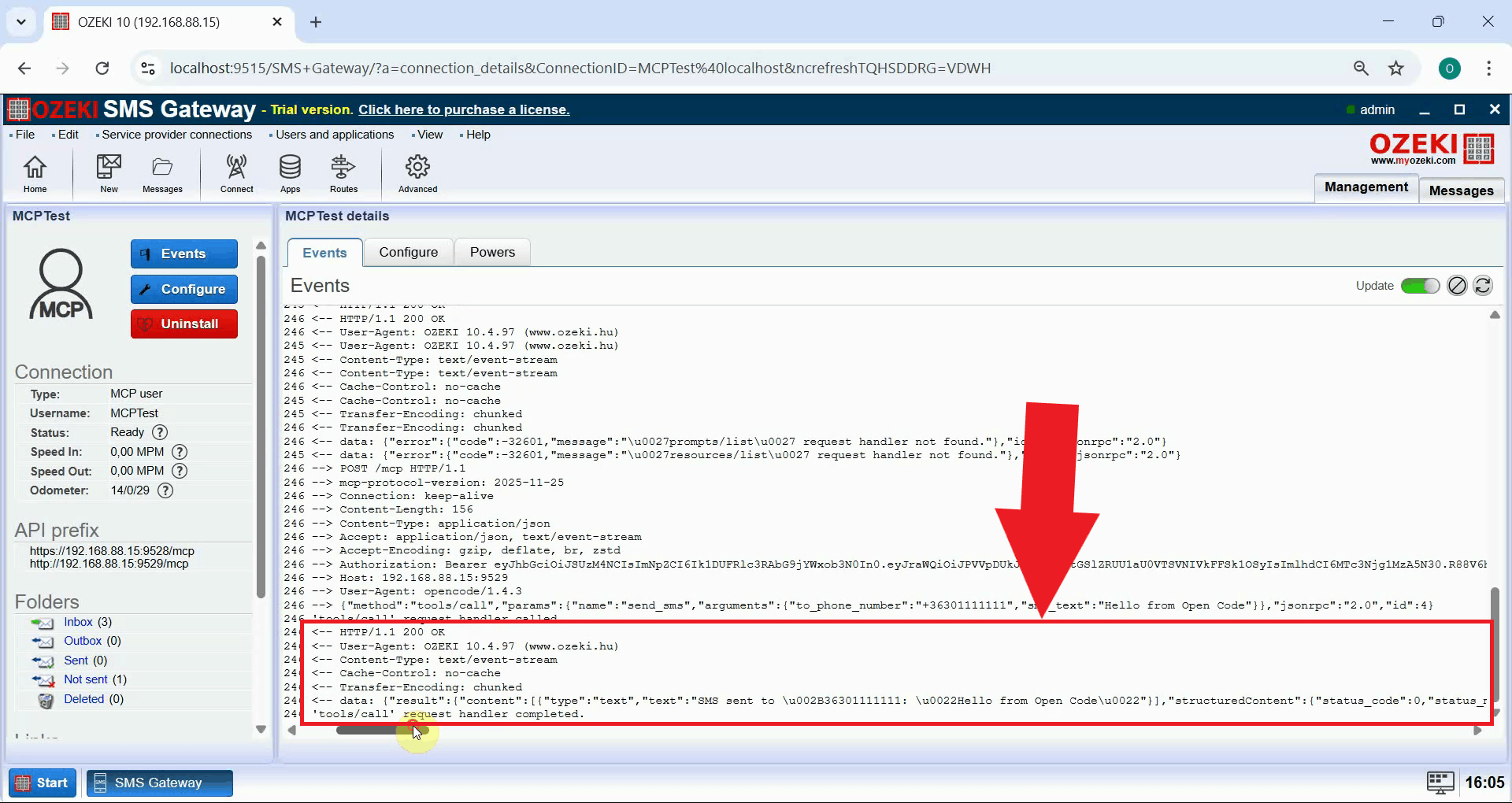
In the MCP user event log, you should see an entry for the outgoing message, including the recipient number and message text, confirming that it was successfully processed by the gateway (Figure 9).
Summary
With the Ozeki SMPP SMS MCP Server connected to OpenCode, your terminal-based AI assistant can now reach beyond the codebase and send SMS messages through your own infrastructure. This setup keeps everything on-premises, giving you full control over message routing, authentication, and delivery. Whether you use it to trigger notifications, automate alerts, or test SMS workflows during development, the integration adds a practical new capability to your AI-assisted projects.