
How to configure the Ozeki SMS MCP Server in Chatbox
This guide walks you through integrating the Ozeki SMS MCP Server with Chatbox, a desktop AI chat application. By following this tutorial, you will learn how to add a custom MCP server in the Chatbox settings and verify that the SMS tools are available.
What is an MCP server?
An MCP (Model Context Protocol) server exposes tools that an AI model can
call during a conversation. In this setup, the Ozeki SMS MCP Server provides SMS
tools such as sending messages and listing incoming SMS. Chatbox connects to the
MCP server through mcp-proxy, which bridges Chatbox's stdio-based
MCP interface to the Ozeki SMS Gateway's Streamable HTTP endpoint.
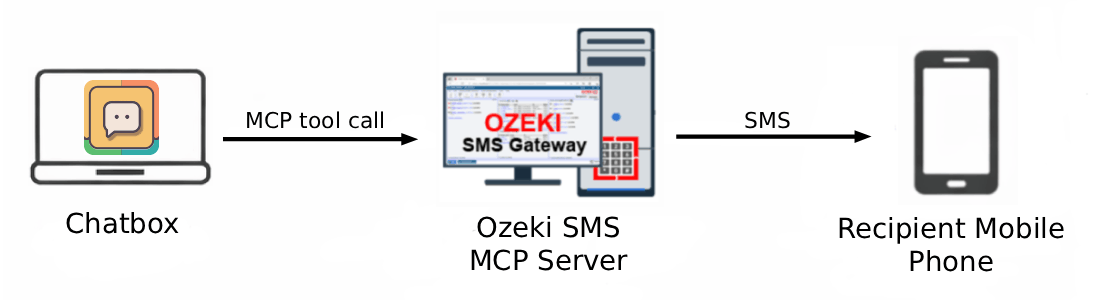
Chatbox MCP server configuration
# Settings -> MCP -> Add Server -> Add Custom Server

# Enter the following details in the Add Custom Server form:
Name:    Ozeki SMS MCP
Type:    Local (stdio)
Command: uvx mcp-proxy --transport streamablehttp -H Authorization "Bearer your-bearer-token" http://{address}:9529/mcp
Steps to follow
We assume Ozeki SMS Gateway is already installed on your system
and you have already created an MCP user account with an API key.
You will also need Chatbox installed on your system. If you have not set it up yet,
follow our Chatbox installation guide. You will also need
uv installed, which provides the
uvx command used to run mcp-proxy.
Video tutorial
The following video shows how to add the Ozeki SMS MCP Server to Chatbox step-by-step.
Step 1 - Open the MCP settings and add a new server
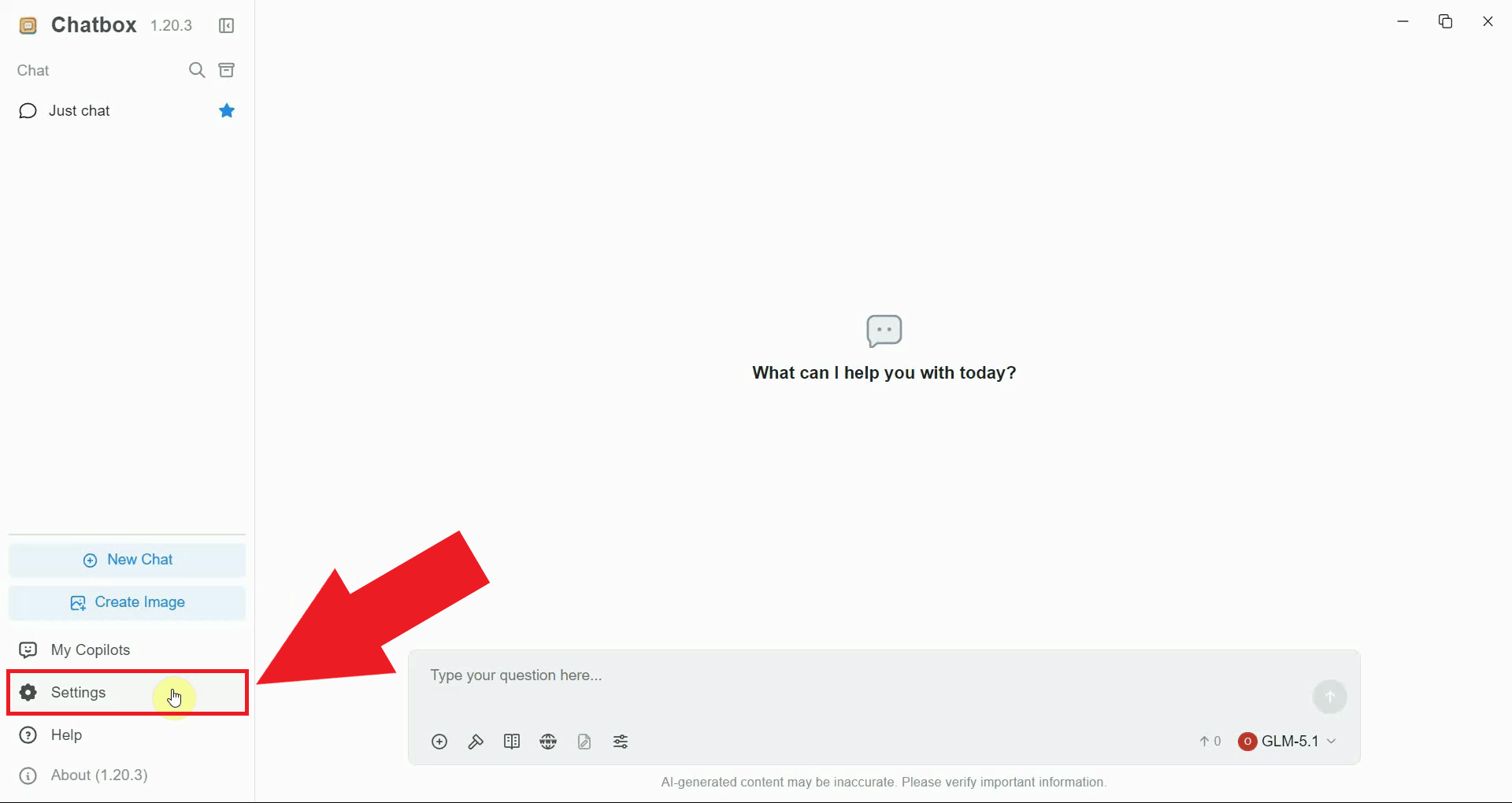
Open Chatbox and navigate to Settings in the interface. This is where AI provider configuration and MCP tool server integrations are managed (Figure 1).
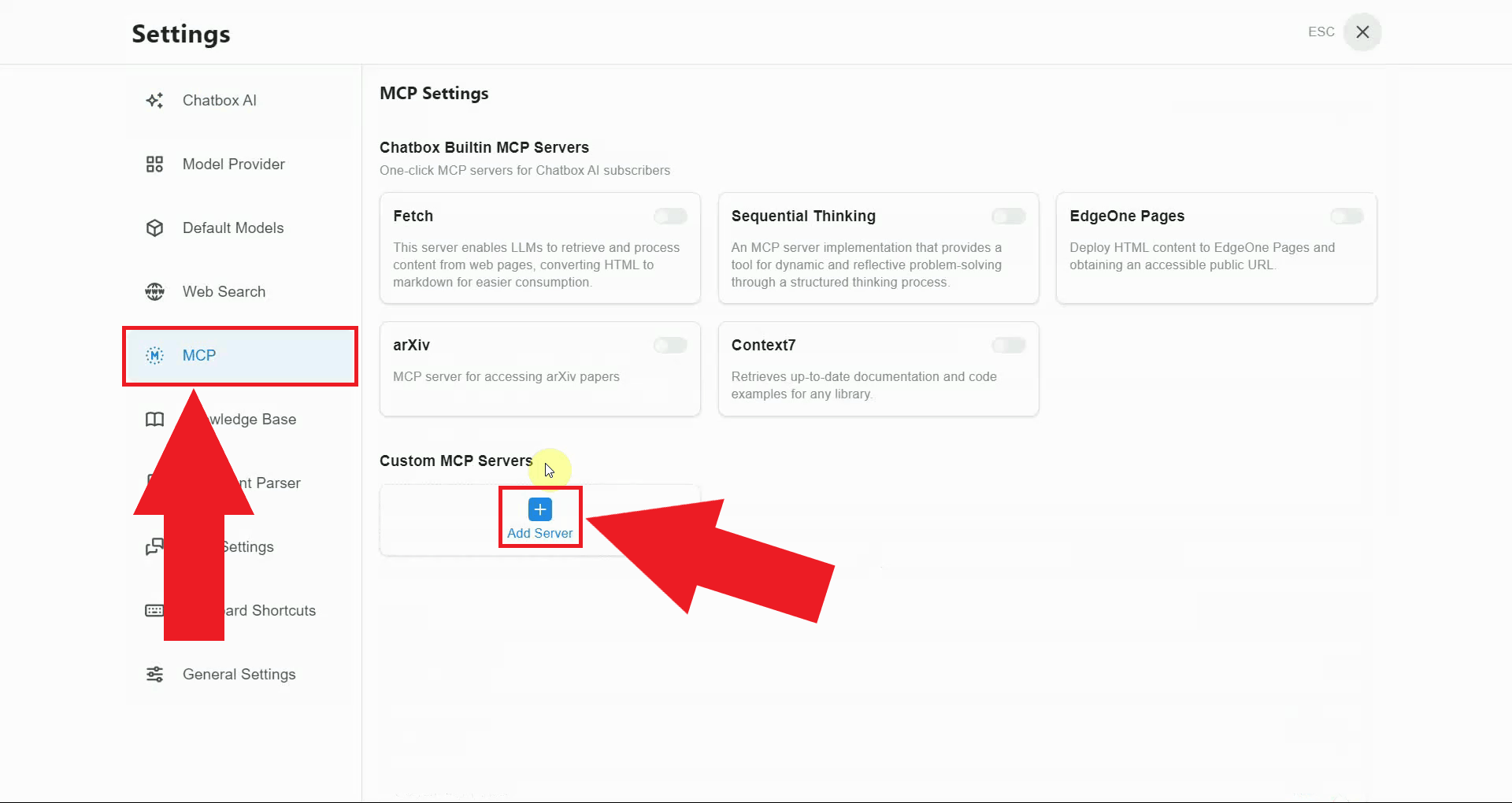
Navigate to the MCP section in the left sidebar and click the Add Server button to open the server type selection (Figure 2).
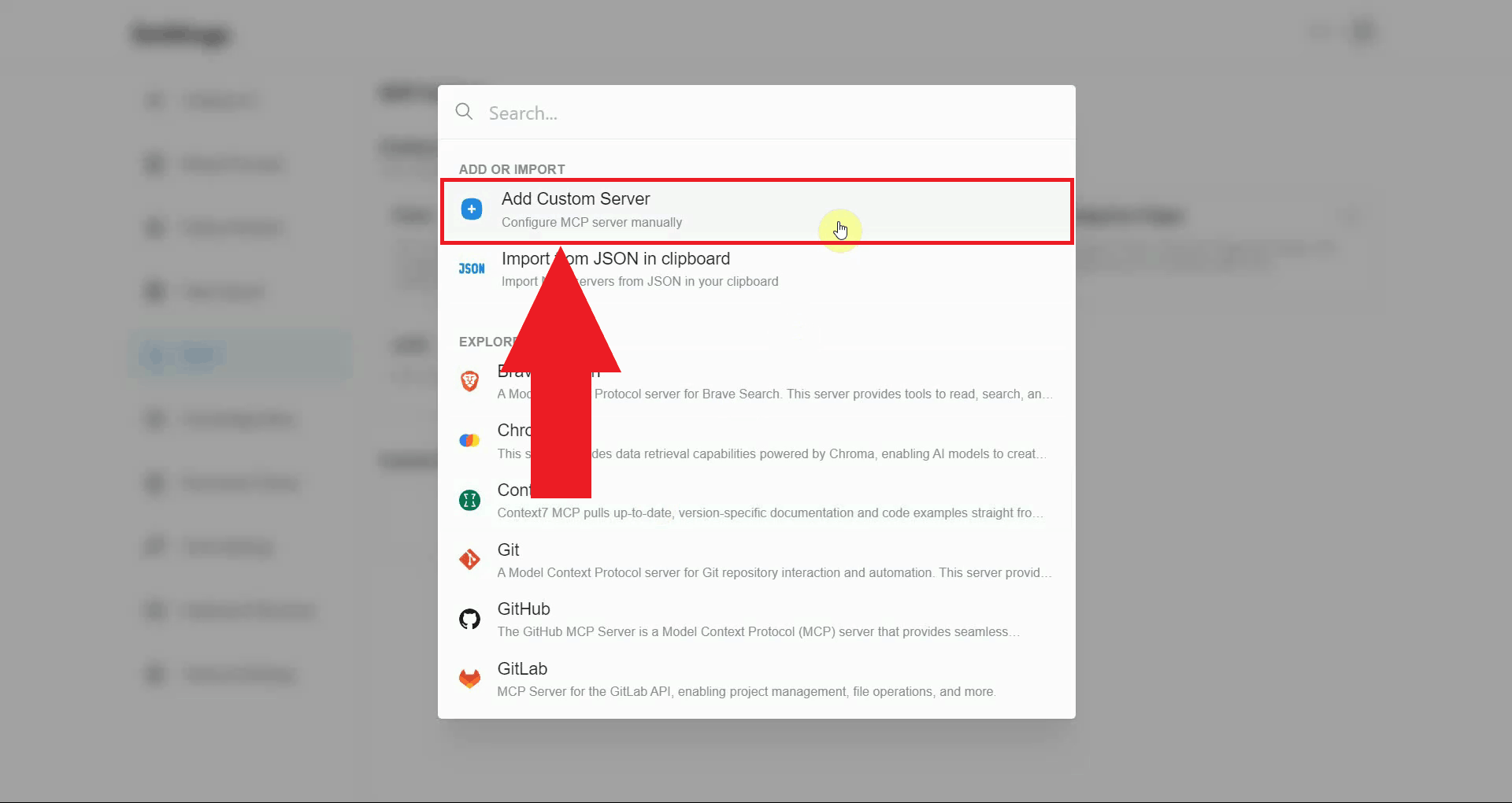
Select Add Custom Server from the options. This allows you to manually specify the connection details for the Ozeki SMS MCP server (Figure 3).
Step 2 - Enter the server details and verify the connection
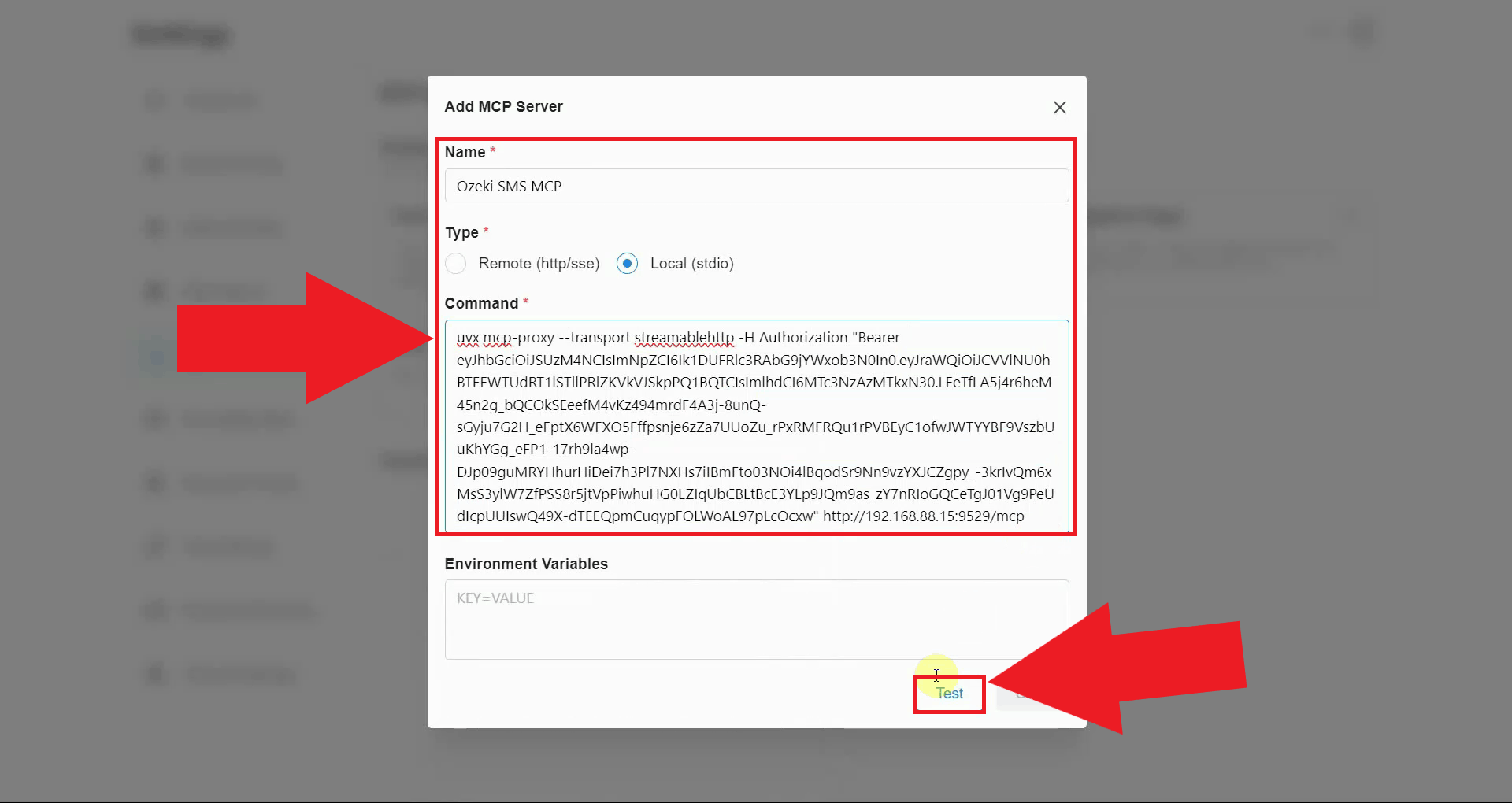
Fill in the server details in the registration form. Enter the server name
and set the Type to Local (stdio). In the Command field,
enter the following command, replacing {address} with your gateway's
IP address and your-bearer-token with the API key you
generated for your MCP user account.
Click Test to verify that Chatbox can reach the MCP server (Figure 4).
uvx mcp-proxy --transport streamablehttp -H Authorization "Bearer your-bearer-token" http://{address}:9529/mcp
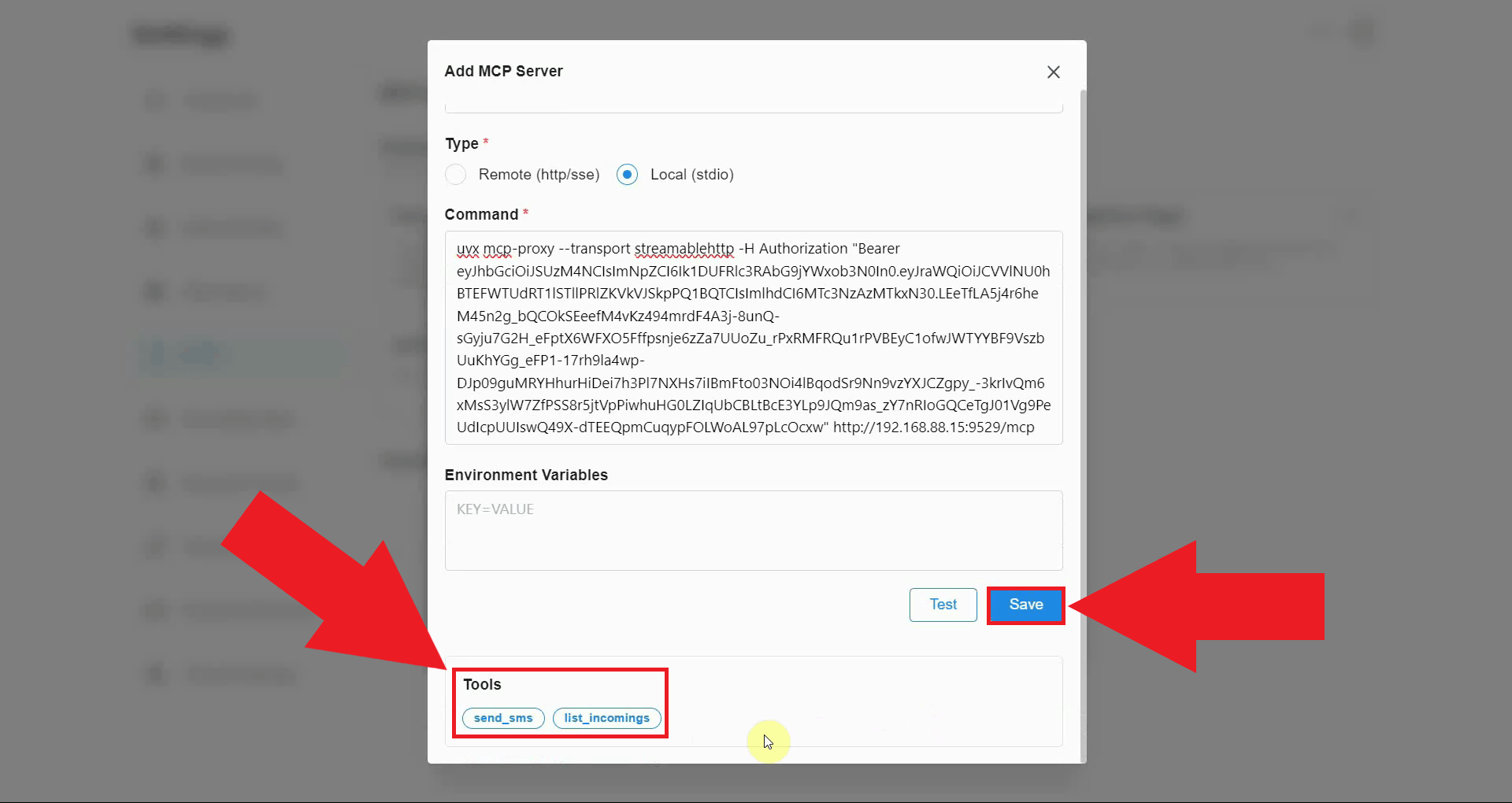
If the connection is successful, the SMS tools exposed by the Ozeki SMS MCP Server will be listed in the form. Review the available tools and click Save to add the server to Chatbox (Figure 5).
Summary
You have successfully added the Ozeki SMS MCP Server to Chatbox. The mcp-proxy command bridges Chatbox's stdio interface to the Ozeki SMS Gateway's Streamable HTTP endpoint, while the Bearer token authenticates every request. With the server connected, the AI model can send and receive SMS messages through your gateway without any additional setup. Chatbox can now act on SMS-related instructions simply by being asked to do so in plain language.