
How to enable 2FA with an authenticator app in Ozeki SMS Gateway
This article shows you how to enable two-factor authentication (2FA) in Ozeki SMS Gateway using an authenticator app, such as Google Authenticator. Two-factor authentication adds an extra layer of security to your account by requiring a time-based 6-digit code in addition to your password when you log in. This guide takes you through the setup process step-by-step, from opening the security settings to scanning a QR code and verifying your first login.
What is two-factor authentication?
Two-factor authentication (2FA) is a security method that requires users to provide two different forms of identification before they can access an account. In Ozeki SMS Gateway, 2FA combines your regular login credentials with a temporary 6-digit code generated by an authenticator app on your mobile phone. This means that even if someone obtains your password, they will not be able to log in without also having access to the physical device running the authenticator app.
Steps to follow
We assume Ozeki SMS Gateway is already installed on your system. You will also need a mobile phone with an authenticator app installed, such as Google Authenticator, to complete the setup.
- Open the two-factor authentication setup screen
- Scan the QR code with your authenticator app
- Verify the 6-digit code to complete setup
- Log in using the authenticator app
Video tutorial
The following video shows how to set up two-factor authentication using an authenticator app step-by-step.
Open the two-factor authentication setup screen
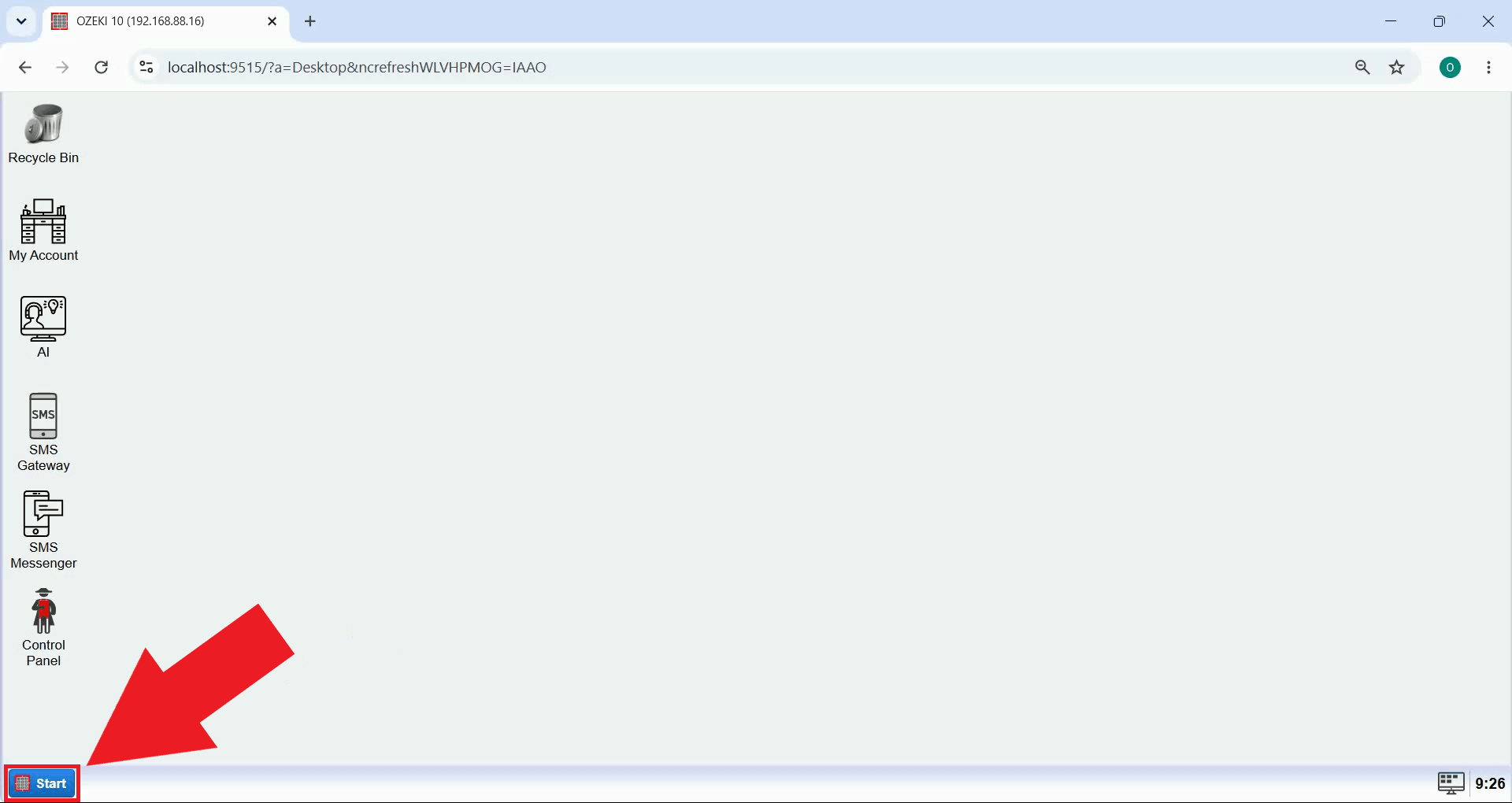
Open the Start menu on the Ozeki Desktop (Figure 1). This is where you can reach the Help menu, which contains the security related settings for your account.
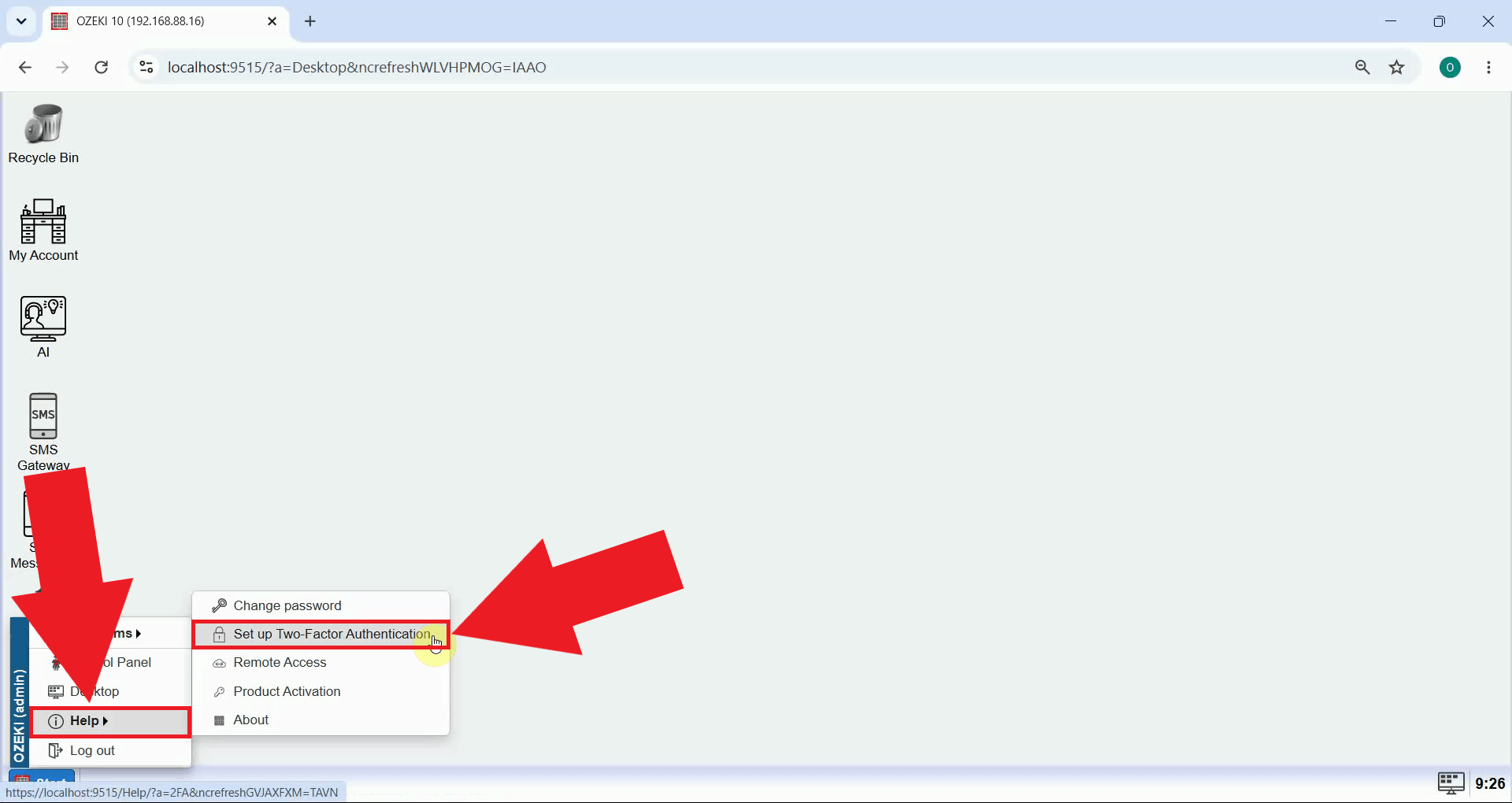
Click Help, then select the Set up Two-Factor Authentication menu item (Figure 2). This will open the verification method selection screen, where you can choose how you would like to receive your second authentication factor going forward.
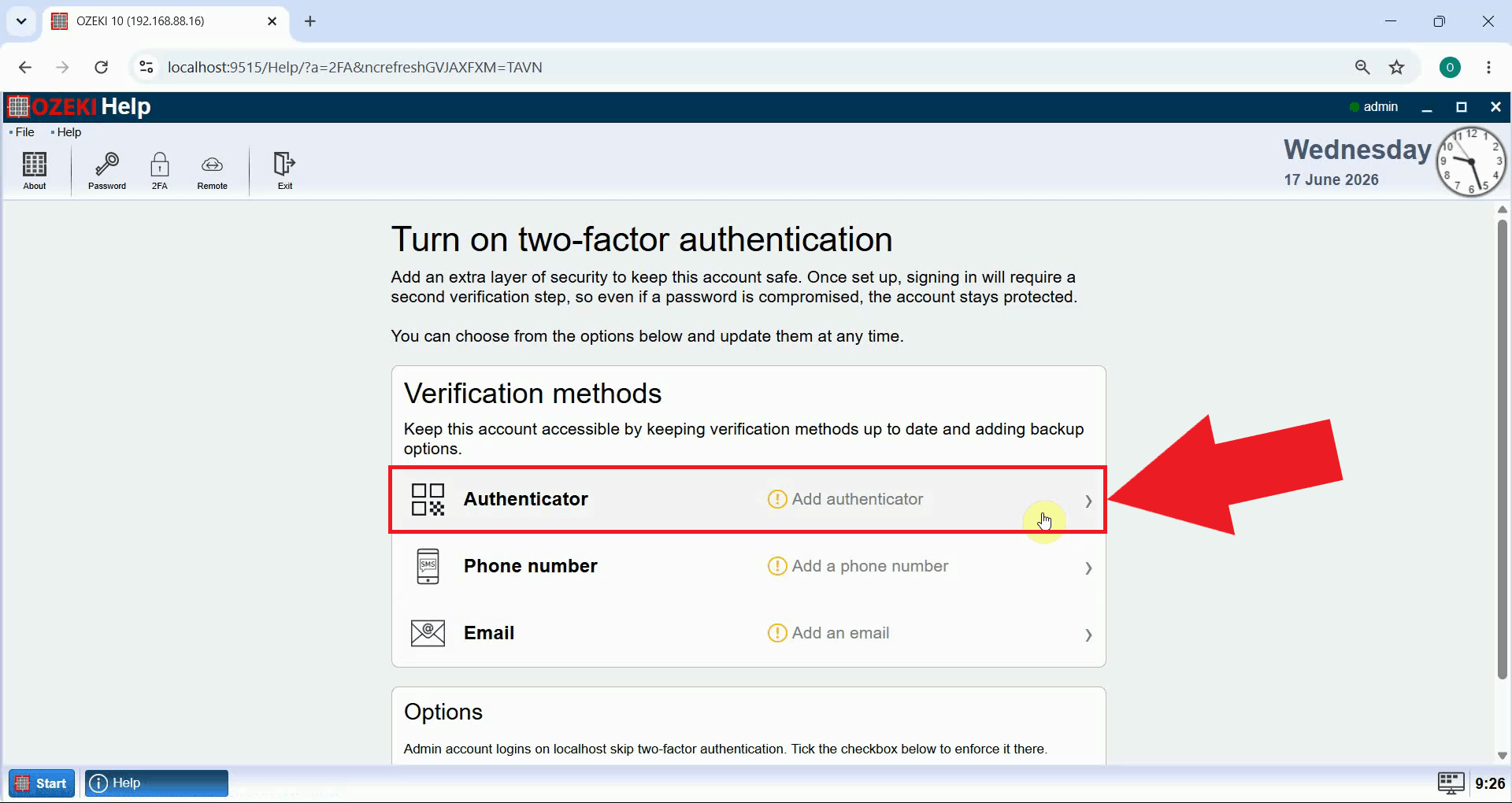
Choose the Authenticator verification method from the list of available options (Figure 3). This method uses a time-based 6-digit code generated by an app on your mobile phone, instead of a code sent by SMS or email.
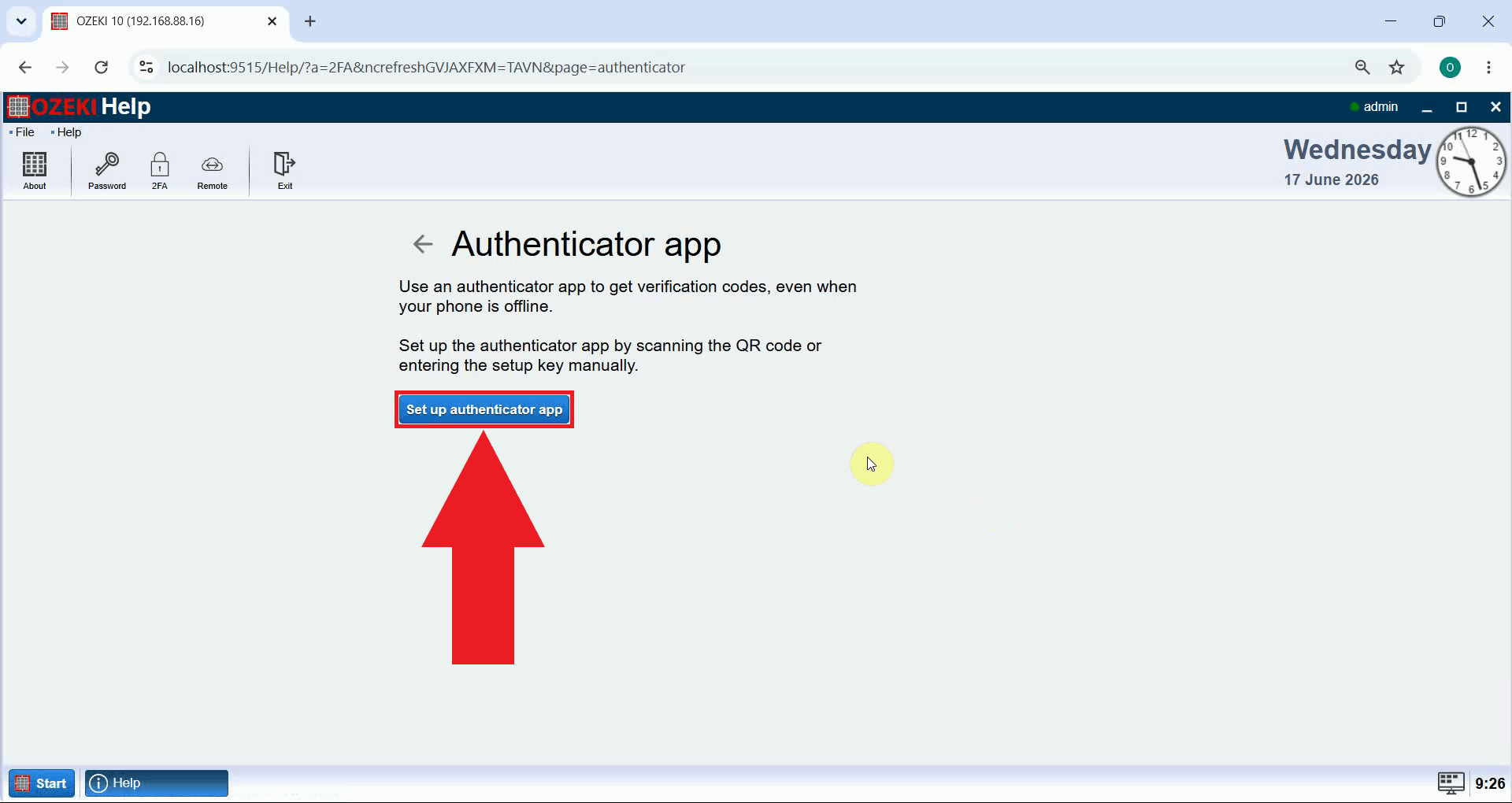
Press the Set up authenticator app button to continue (Figure 4). This will generate a unique QR code for your account, which you will need to scan using the authenticator app on your phone in the next step.
Scan the QR code with your authenticator app
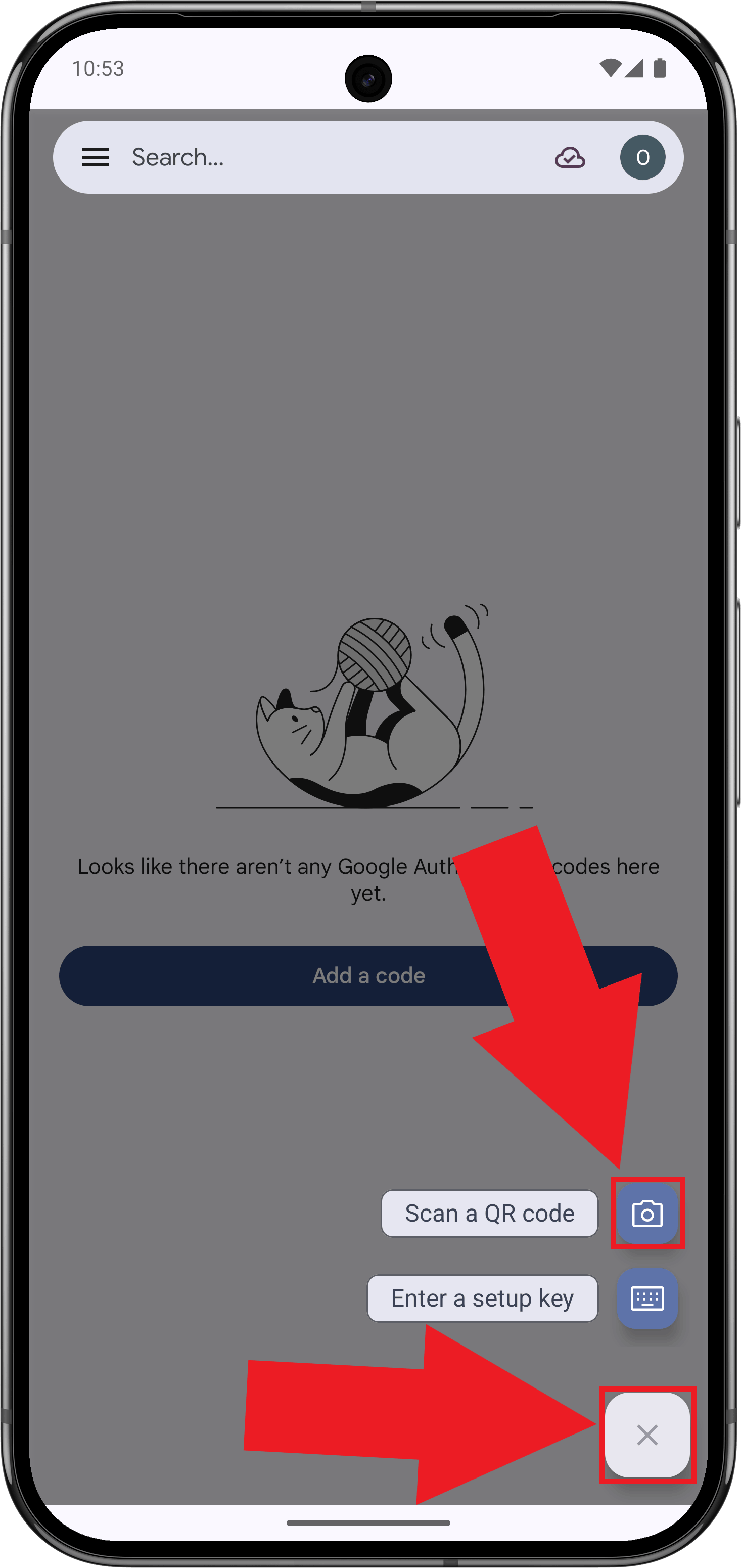
Open the QR code scanner in your authenticator app on your mobile device (Figure 5). In Google Authenticator, this option can be found by tapping the plus icon and selecting Scan a QR code. The scanner uses your phone's camera to read the code displayed on your computer screen.
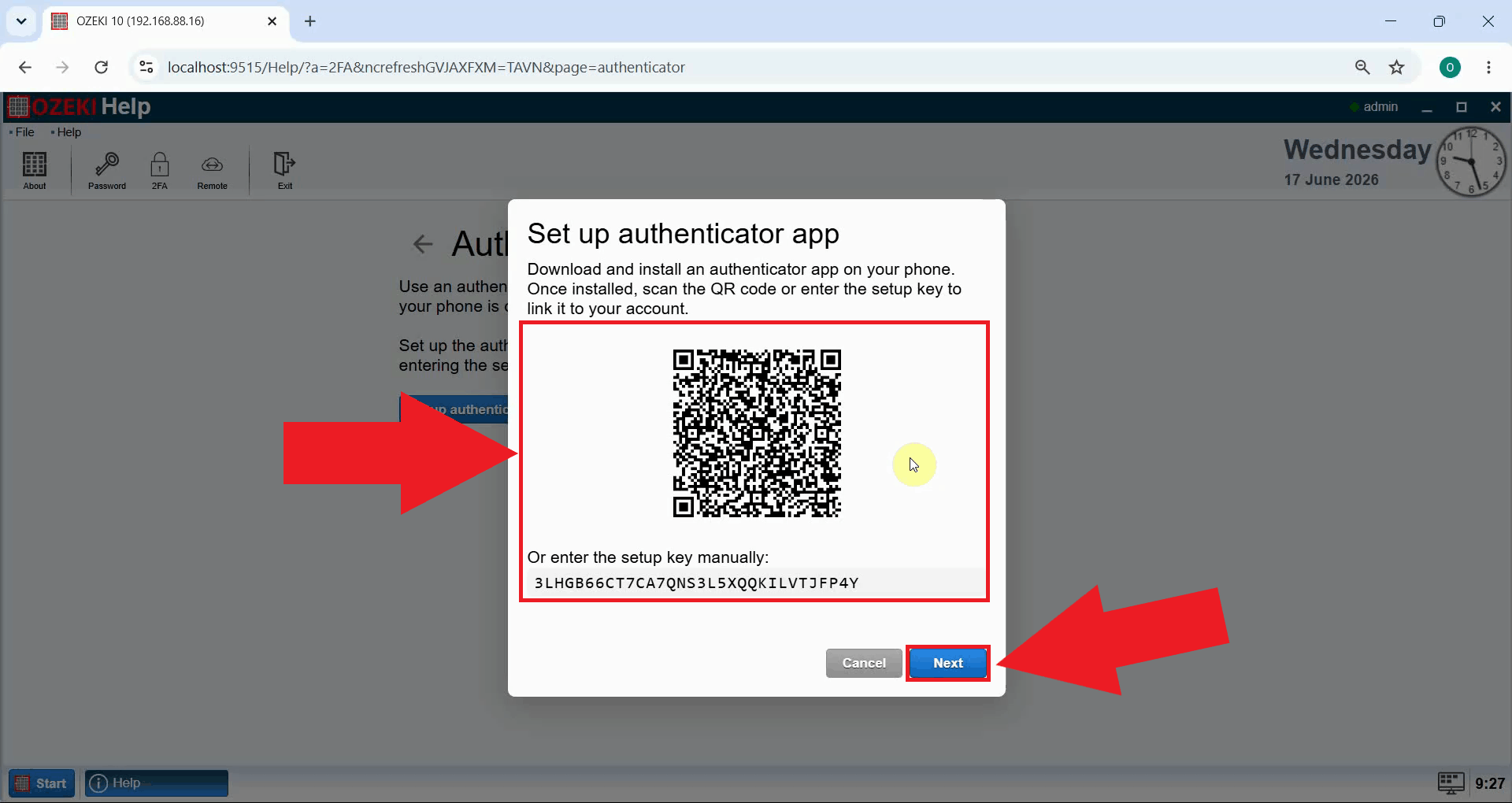
Point your phone's camera at the QR code shown on the setup screen, then press Next once the code has been scanned (Figure 6). This links your authenticator app to your Ozeki SMS Gateway account, allowing it to generate matching verification codes from this point forward.
Verify the 6-digit code to complete setup
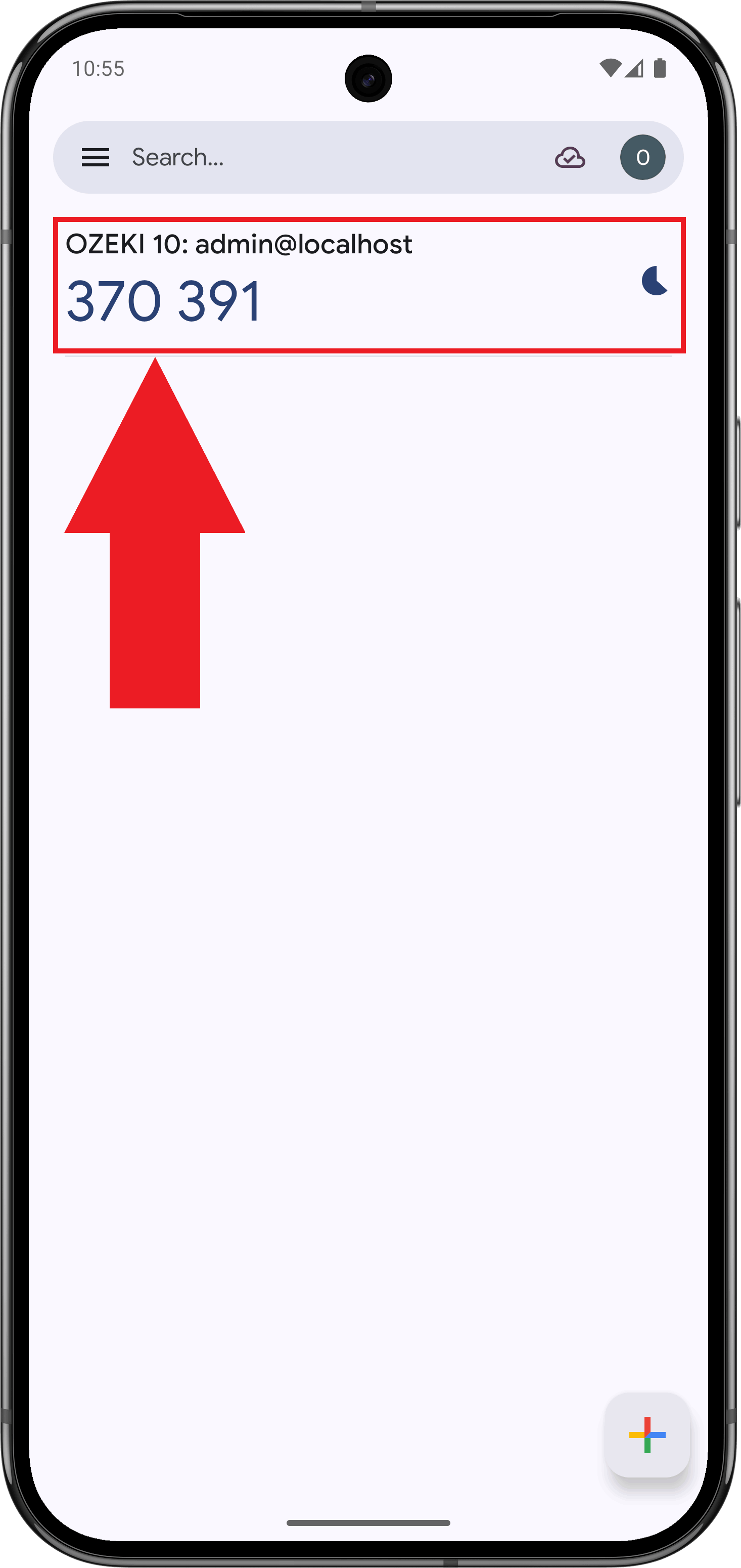
View the 6-digit code generated for your account on your mobile device (Figure 7). The authenticator app automatically generates a new code every 30 seconds, so the code you see will only be valid for that window before it gets replaced by a new one.
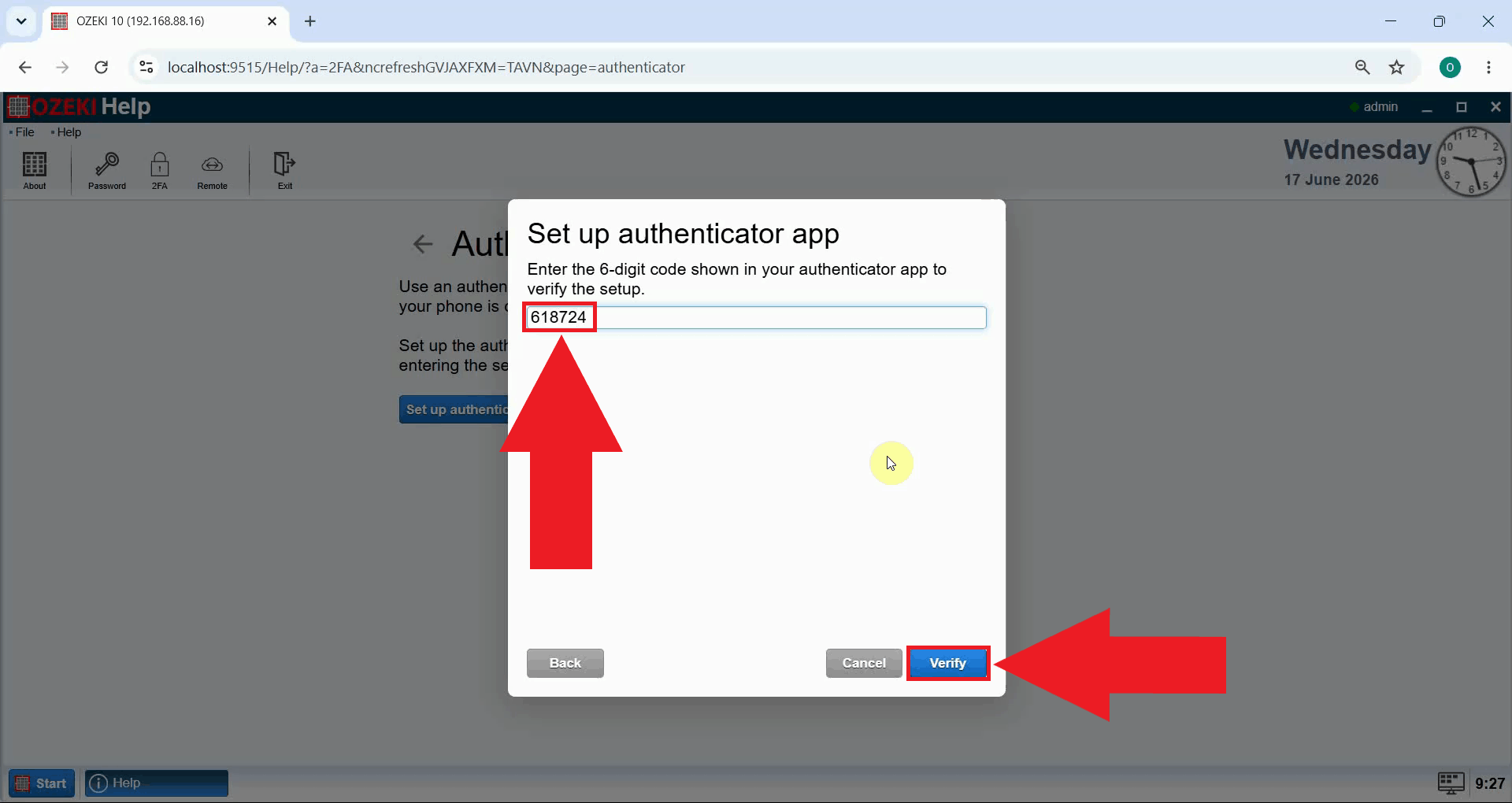
Paste the 6-digit code into the input field in Ozeki SMS Gateway, then press Verify (Figure 8). This checks the entered code against the one generated by your authenticator app, confirming that the code you typed in is correct before the connection is finalized.
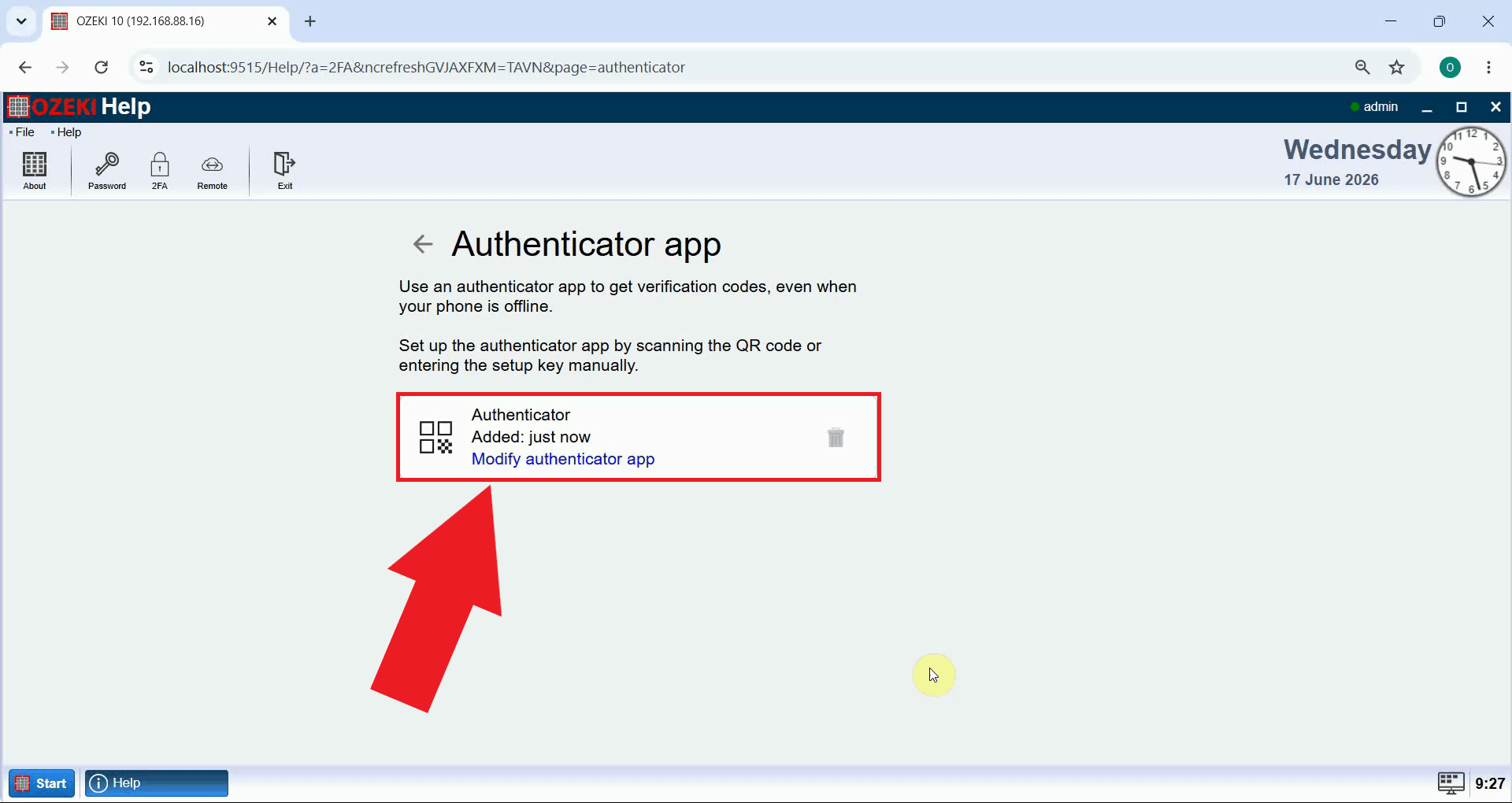
Once verification succeeds, the Authenticator method will be added as a 2FA option for your Ozeki SMS Gateway account (Figure 9). From this point on, you will be asked for a 6-digit code from your authenticator app every time you log in, in addition to your usual password.
Log in using the authenticator app
The following video shows how to log in using authenticator app verification in Ozeki SMS Gateway.
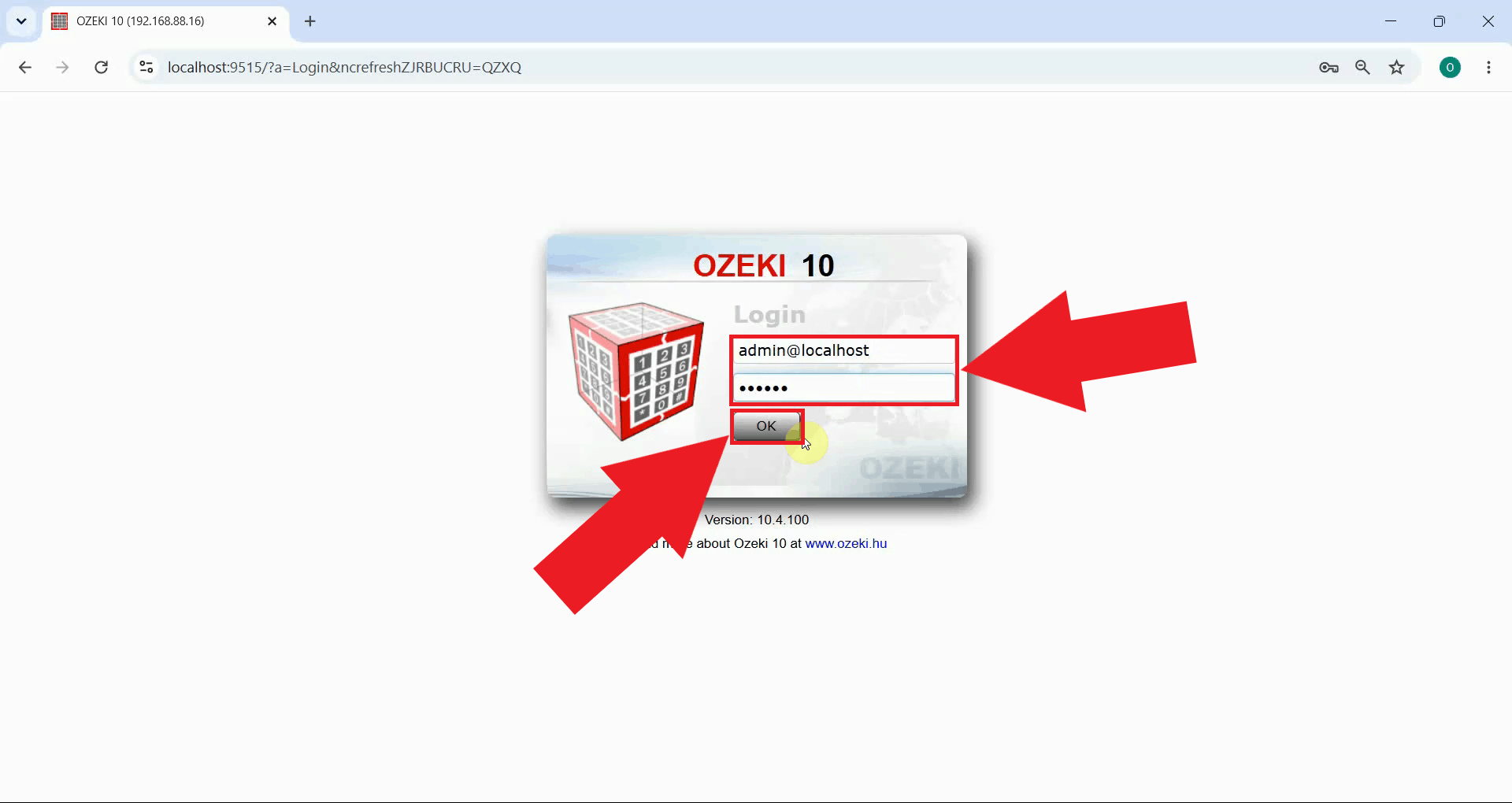
Enter your username and password on the login screen as usual (Figure 10).
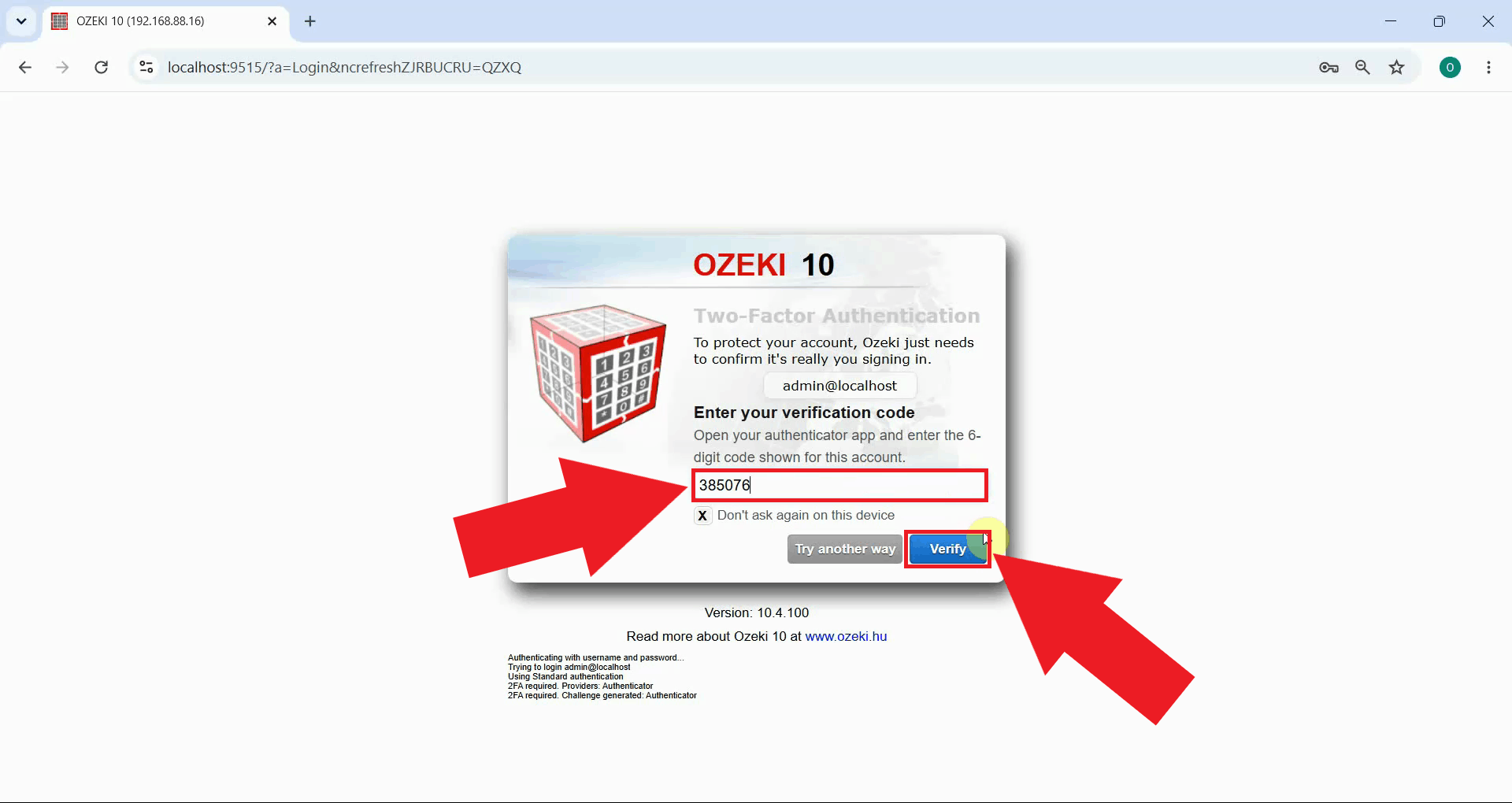
After your credentials are accepted, you are prompted to enter your verification code (Figure 11). Open your authenticator app and type in the current 6-digit code it displays to complete the login, then press Verify.
Summary
You have now learned how to enable and use two-factor authentication with an authenticator app in Ozeki SMS Gateway. By following the steps above, your account is protected by both a password and a time-based 6-digit code, making it far more secure against unauthorized access. Ozeki SMS Gateway supports flexible verification methods so you can choose the option that best fits your workflow, and the authenticator app method is one of the most convenient and reliable choices available. Don't wait any longer, set up two-factor authentication today and keep your SMS gateway account safe.