
How to remove 2FA for a user in Ozeki SMS Gateway
This article shows you how an administrator can remove two-factor authentication from a user account in Ozeki SMS Gateway. This is useful when a user has lost access to their verification method, for example if they uninstalled their authenticator app, no longer have access to the email inbox they registered, or changed their phone number, and as a result can no longer complete the second step of logging in. Removing 2FA clears the user's existing verification method, allowing them to log in with just their password and set up a new verification method afterward.
What is two-factor authentication?
Two-factor authentication (2FA) is a security method that requires users to provide two different forms of identification before they can access an account. In Ozeki SMS Gateway, 2FA combines your regular login credentials with a temporary 6-digit code. This means that even if someone obtains your password, they will not be able to log in without also having access to that phone.
Steps to follow
- Log in as an administrator
- Open the user's details page in the Control Panel
- Remove the user's 2FA method
Video tutorial
The following video shows how to remove 2FA for a user step-by-step.
Log in as an administrator
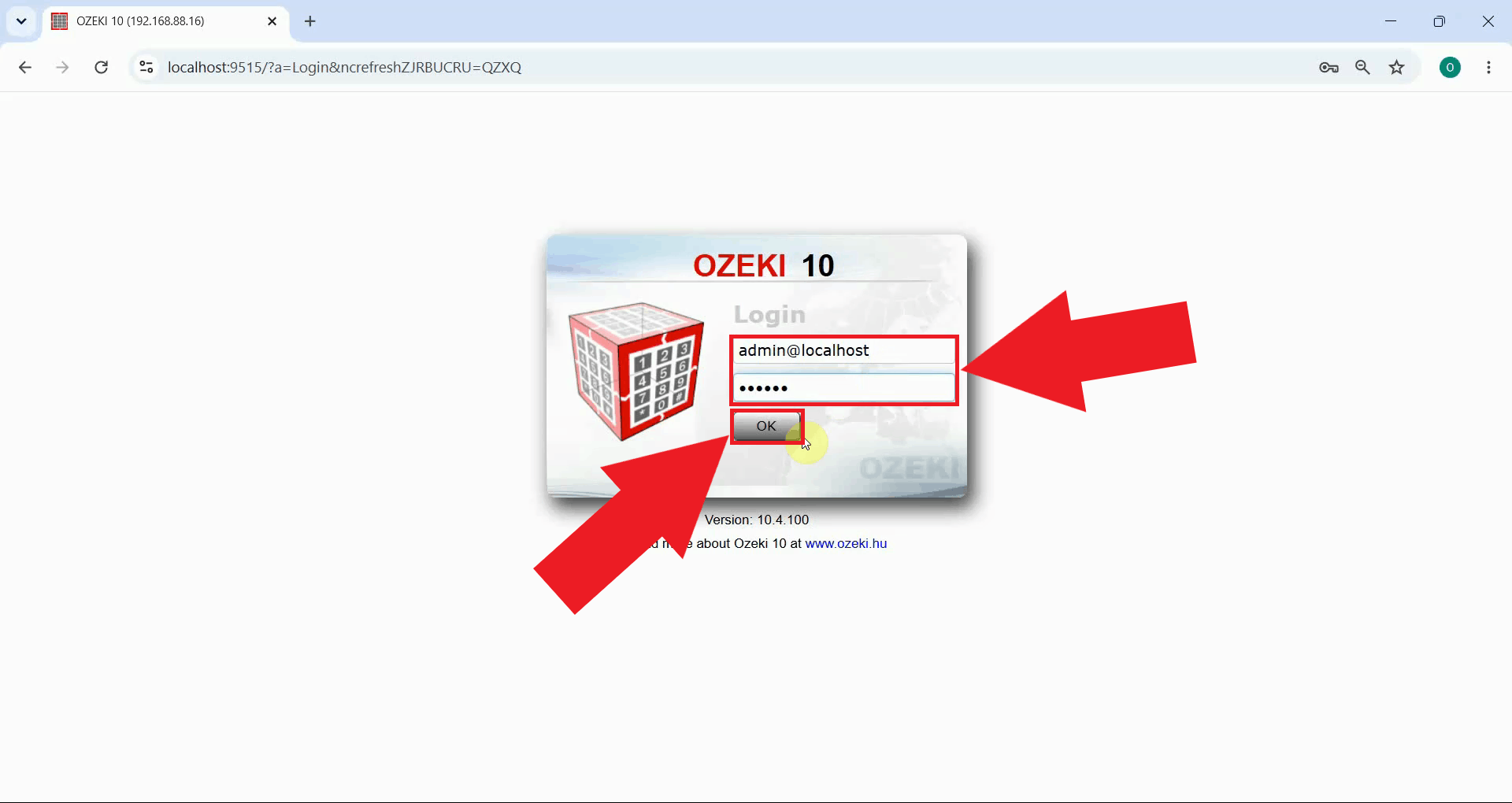
Enter your administrator credentials on the login screen and press OK (Figure 1). Only an administrator account has the permissions needed to manage another user's 2FA settings.
Open the user's details page in the Control Panel
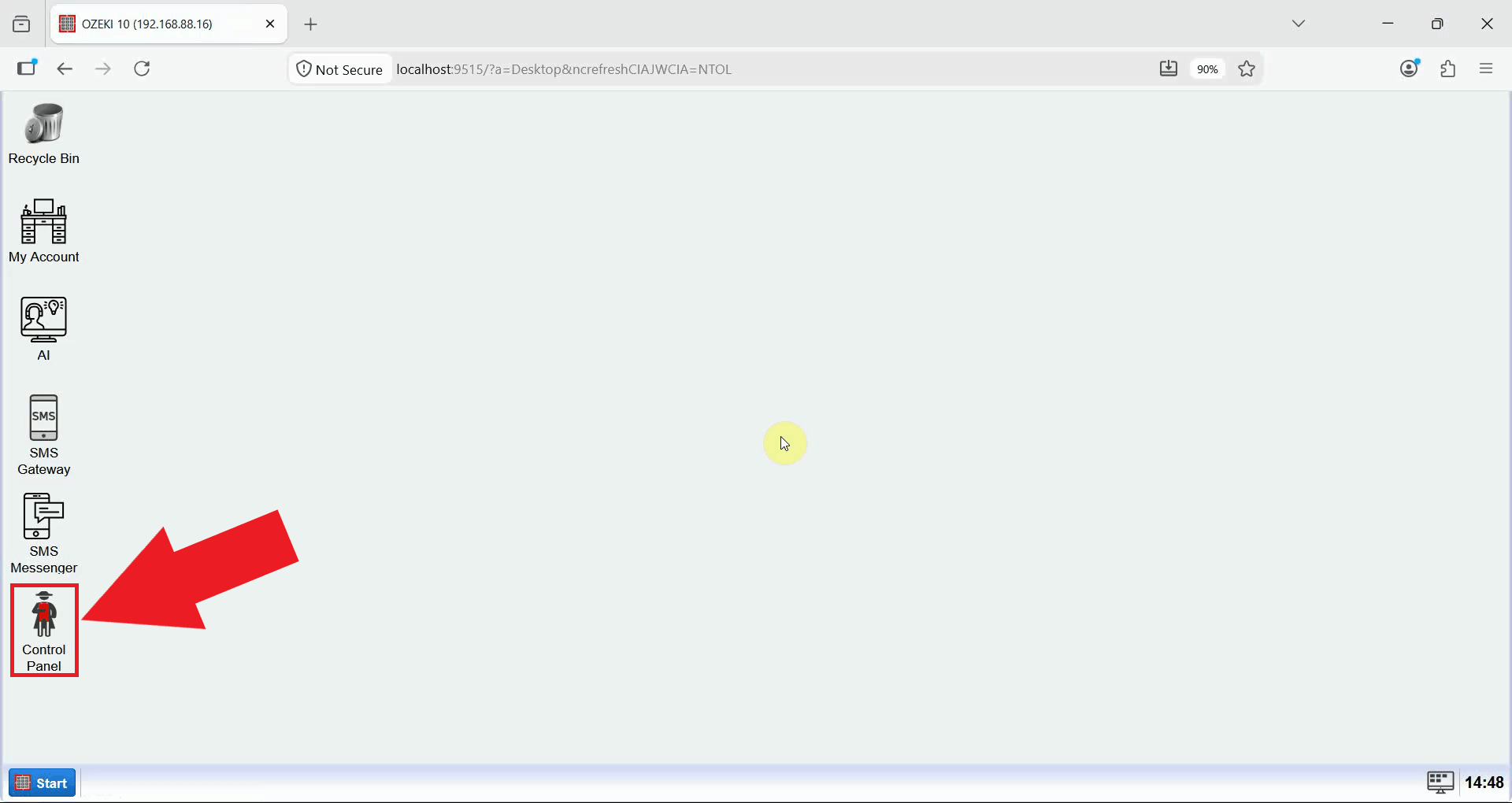
Open the Control Panel icon on the Ozeki Desktop (Figure 2). This application contains the tools needed to manage user accounts, including their two-factor authentication settings.
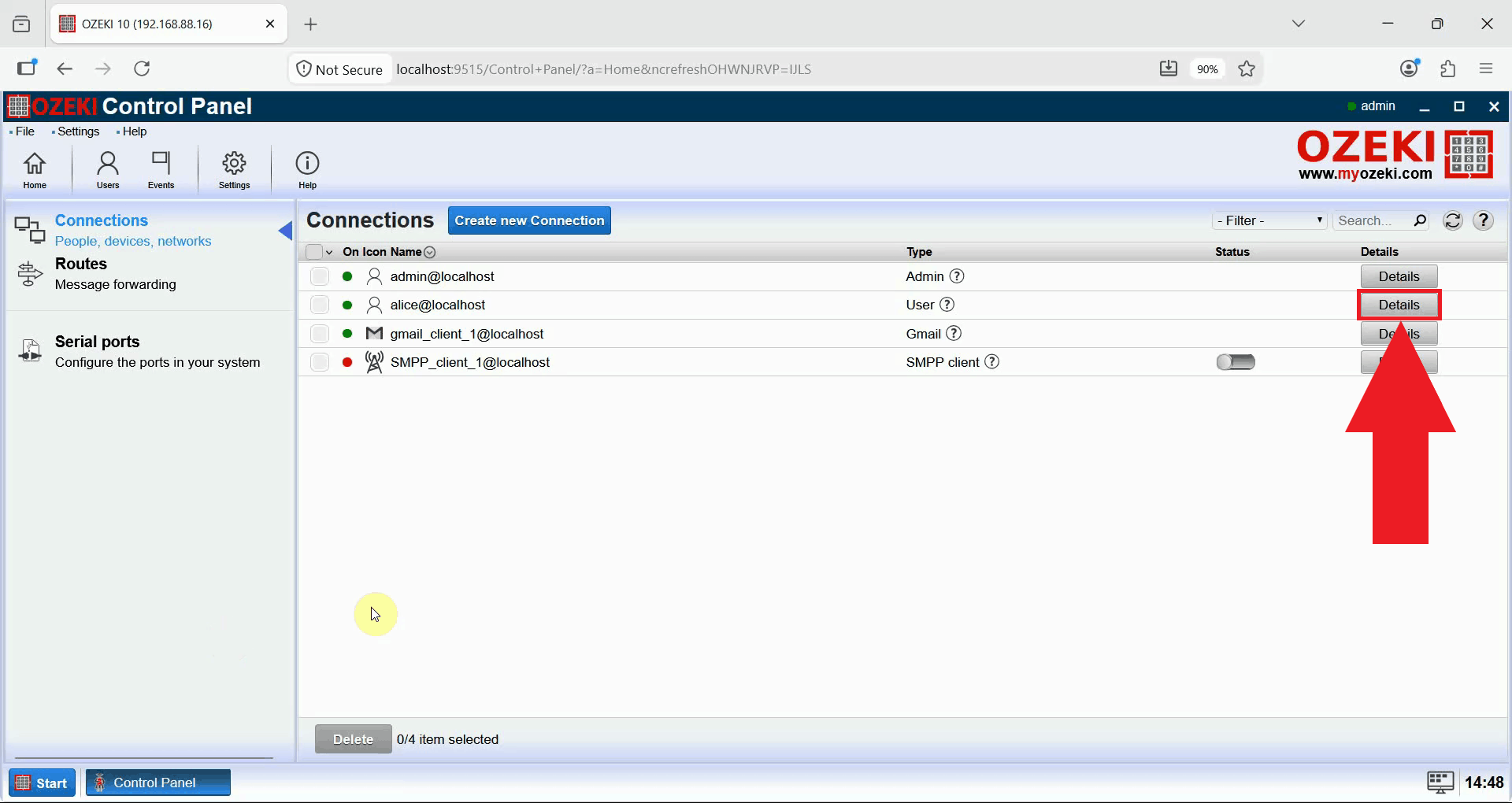
In the Connections list, find the affected user and press Details next to their name (Figure 3). This opens the user's details page, where their connection information and security settings can be managed.
Remove the user's 2FA method
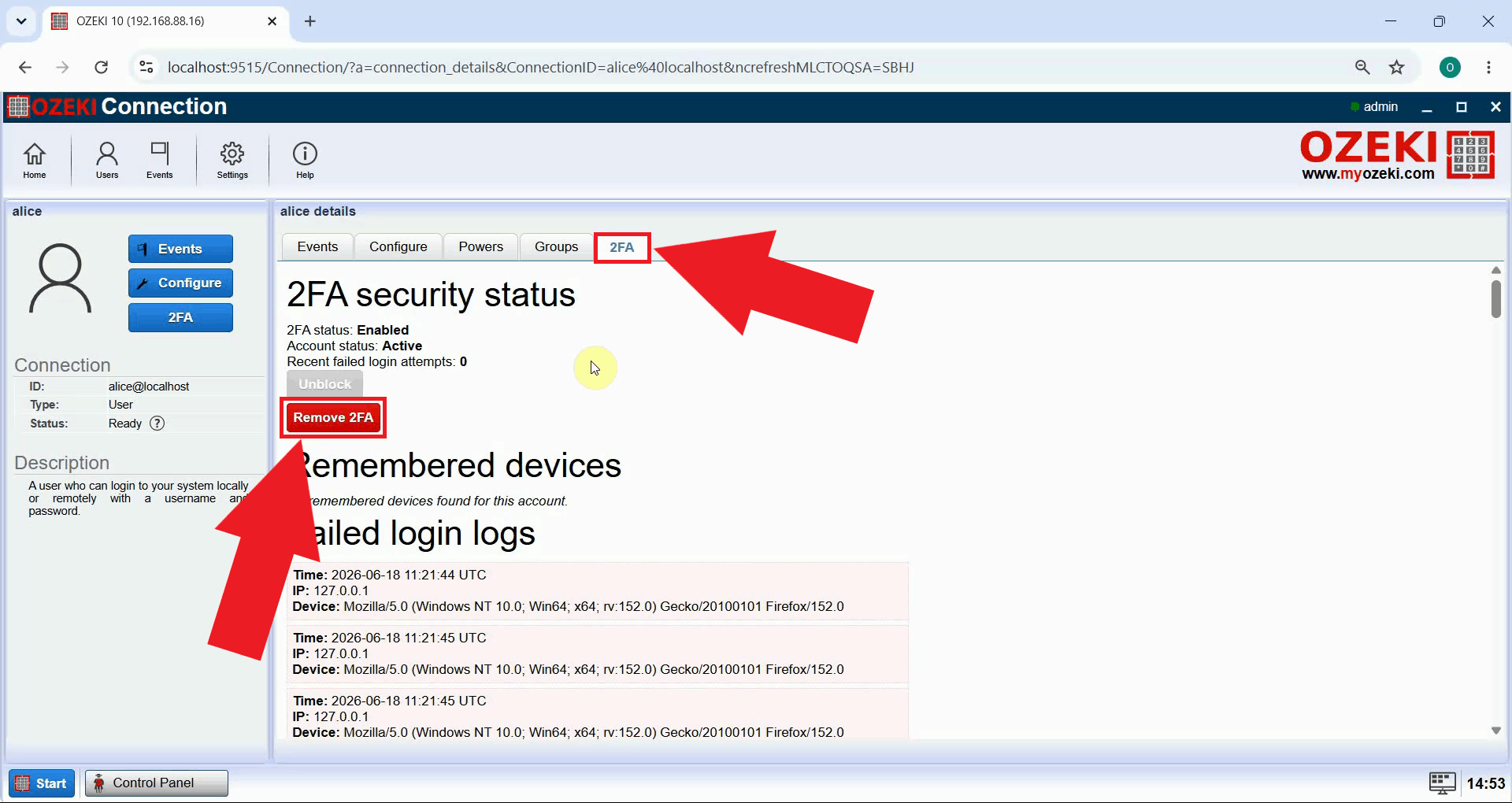
Select the 2FA tab on the user's details page, then press Remove 2FA (Figure 4). This tab also shows the user's current 2FA status and account activity, which can help confirm that this user is indeed the one who needs their verification method cleared.
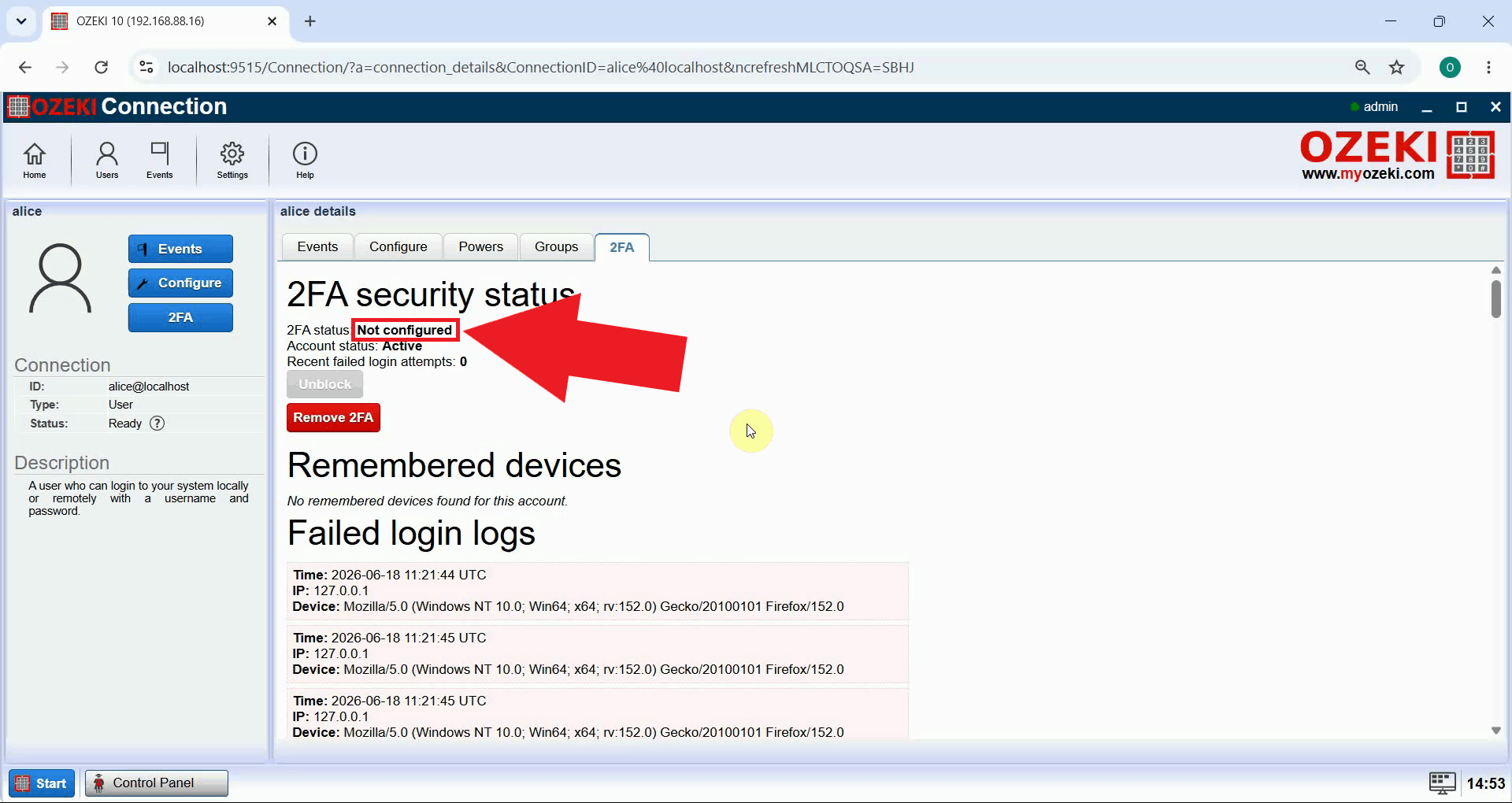
Once the action completes, the 2FA status changes to "Not configured" for that user (Figure 5). The user can now log in with their username and password alone, and can set up a new 2FA method of their choice the next time they access their account settings.
Final thoughts
You have now learned how an administrator can remove a user's two-factor authentication method in Ozeki SMS Gateway, restoring their ability to log in after losing access to their authenticator app, email, or phone number. This gives administrators a quick way to recover a user's access without weakening the account's password protection, since the user can simply set up 2FA again once they log back in.